> ## Documentation Index
> Fetch the complete documentation index at: https://docs.truenroll.com/llms.txt
> Use this file to discover all available pages before exploring further.
# Document Verification
Verify a candidate's academic documents directly from the Candidate Details page. Select the documents you want to verify, initiate verification, and track the verification status from the same page.
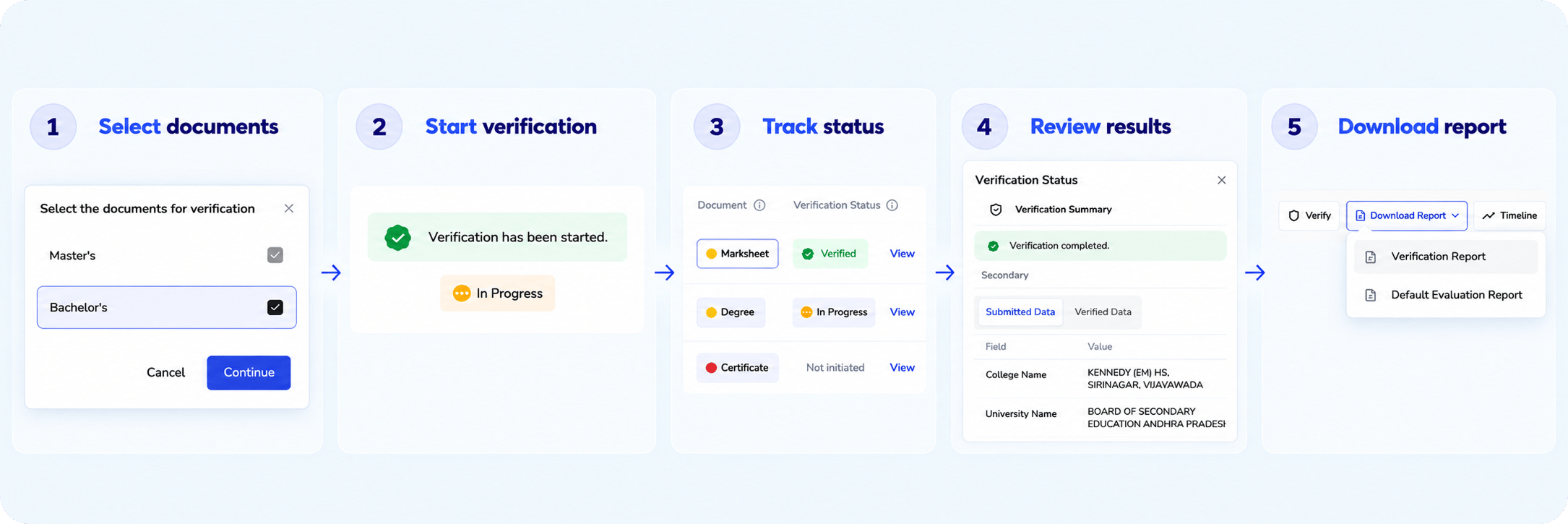 ## Start verification
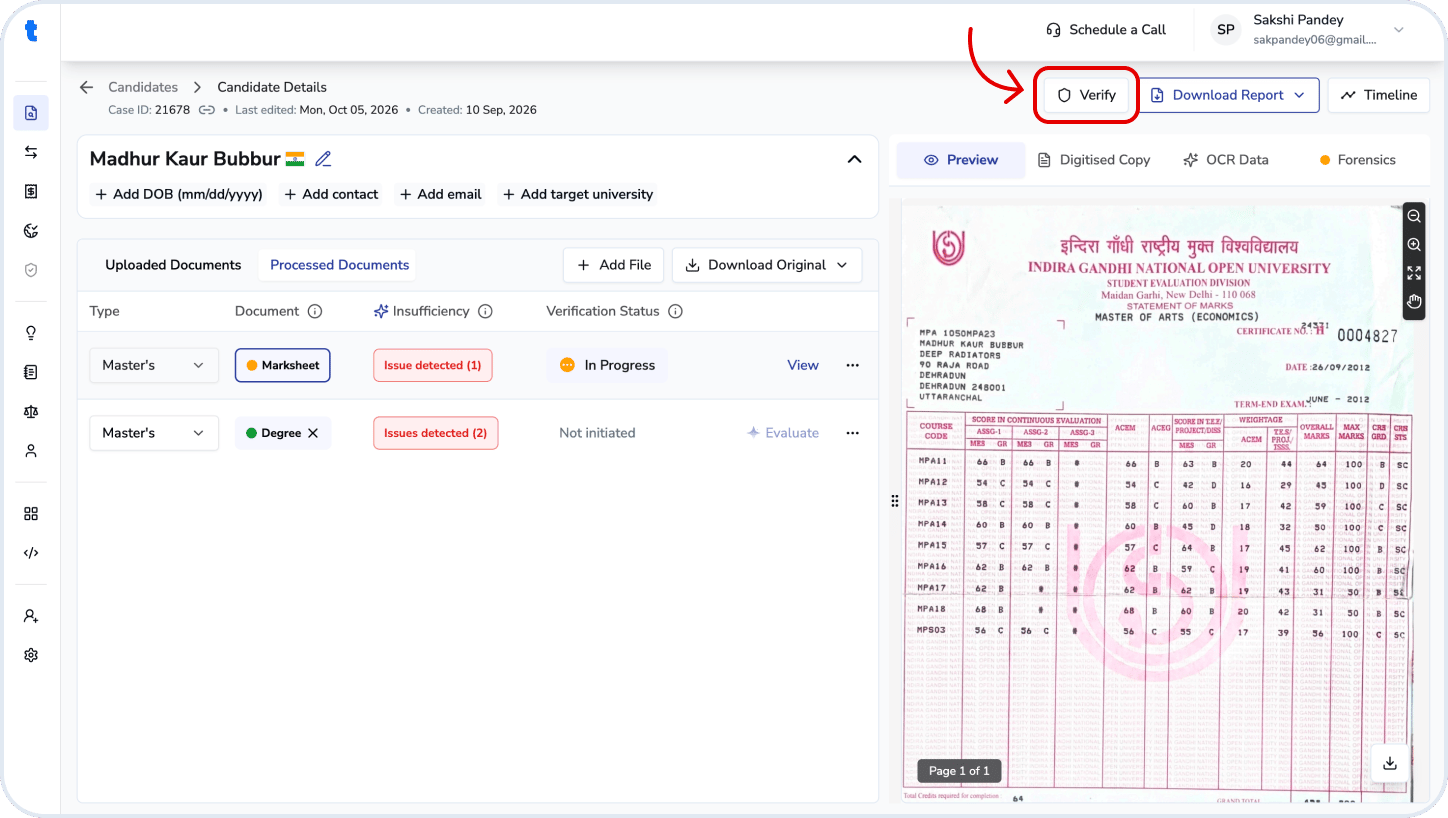 * Open the candidate from **Case List** and go to **Candidate Details**.
* Click **Verify** in the top-right corner.
* Select the documents you want to verify.
* Click **Continue** to start verification.
* Open the candidate from **Case List** and go to **Candidate Details**.
* Click **Verify** in the top-right corner.
* Select the documents you want to verify.
* Click **Continue** to start verification.
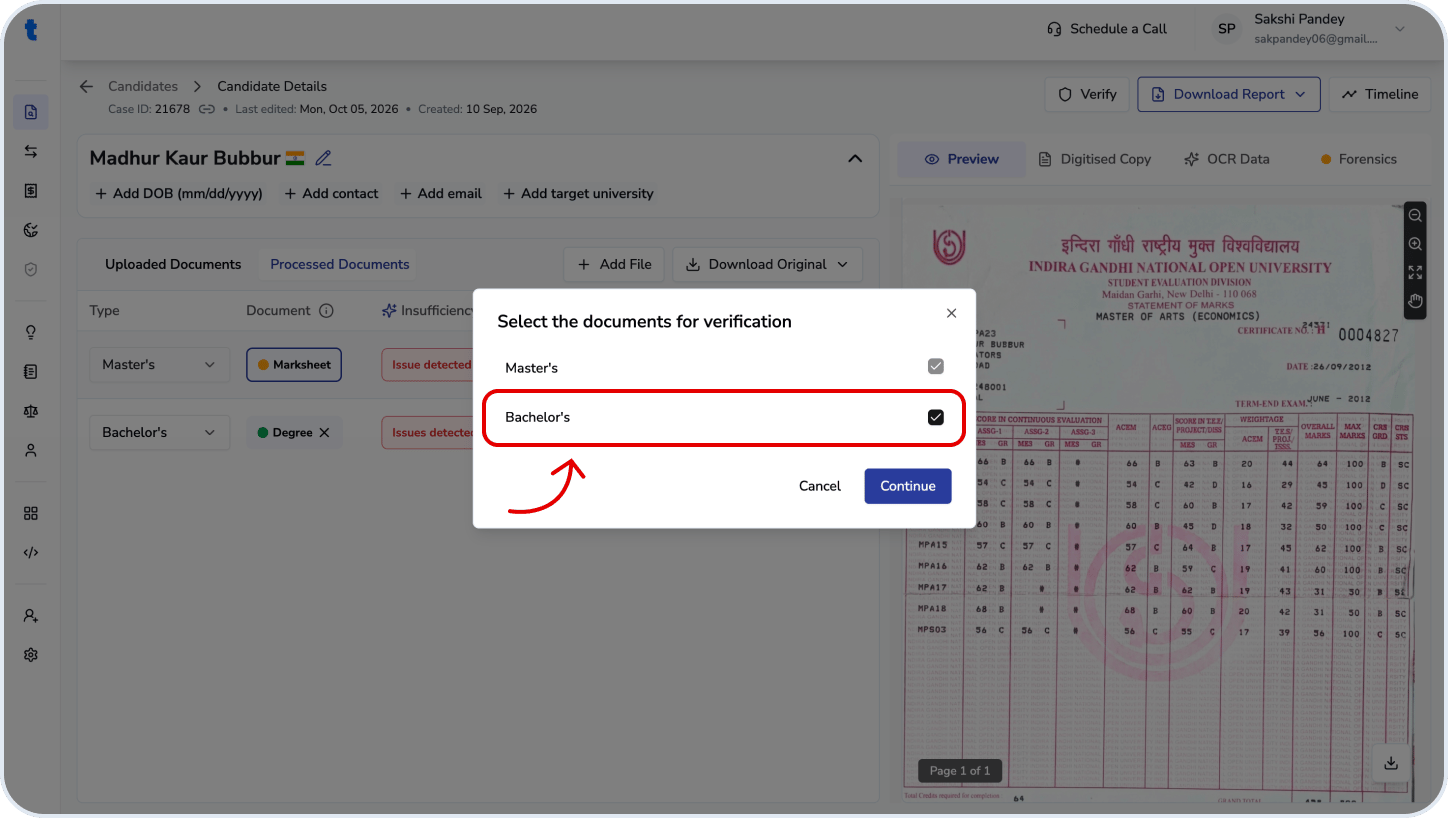 You can select multiple documents for verification at the same time.
## Track verification status
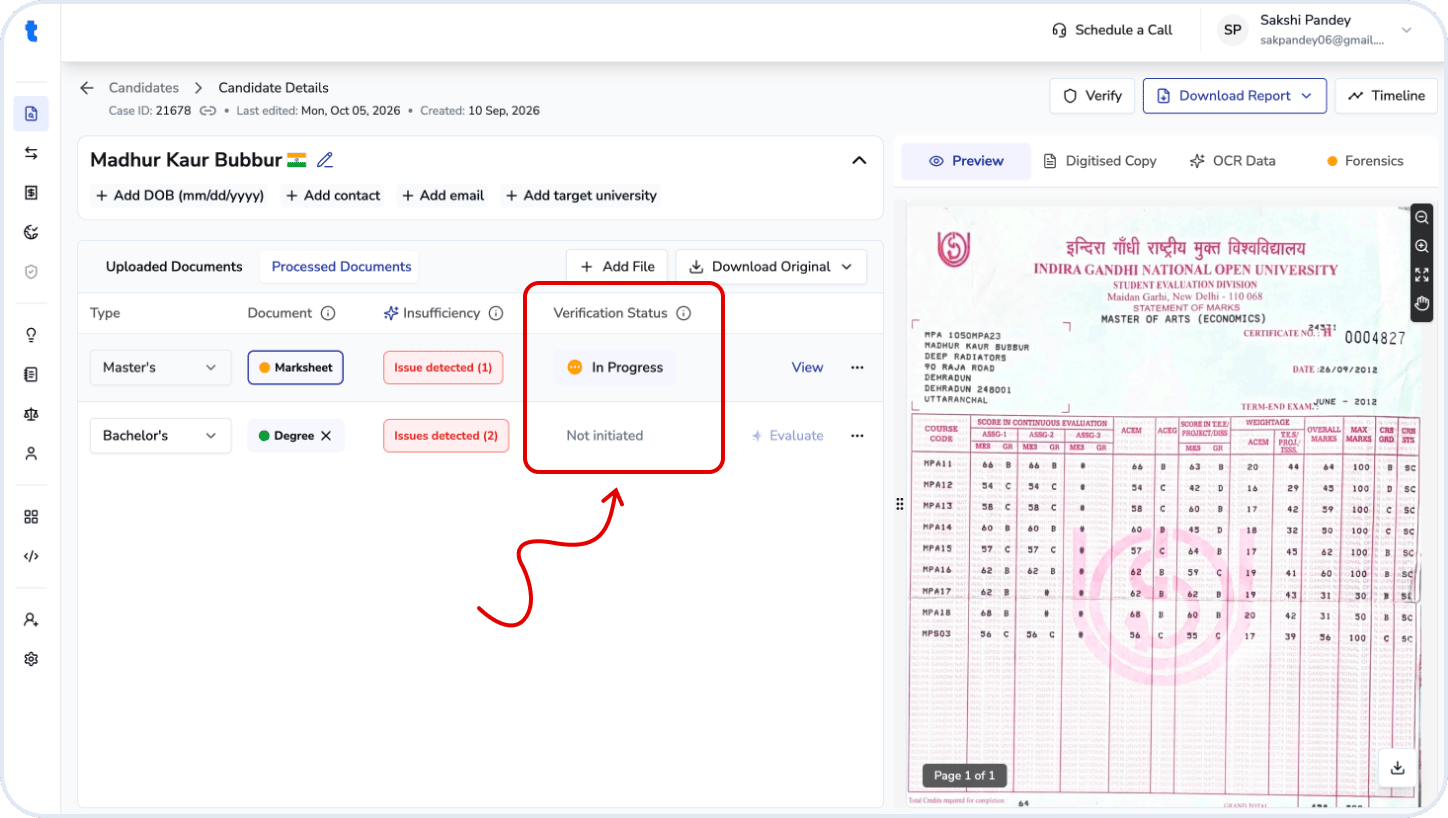
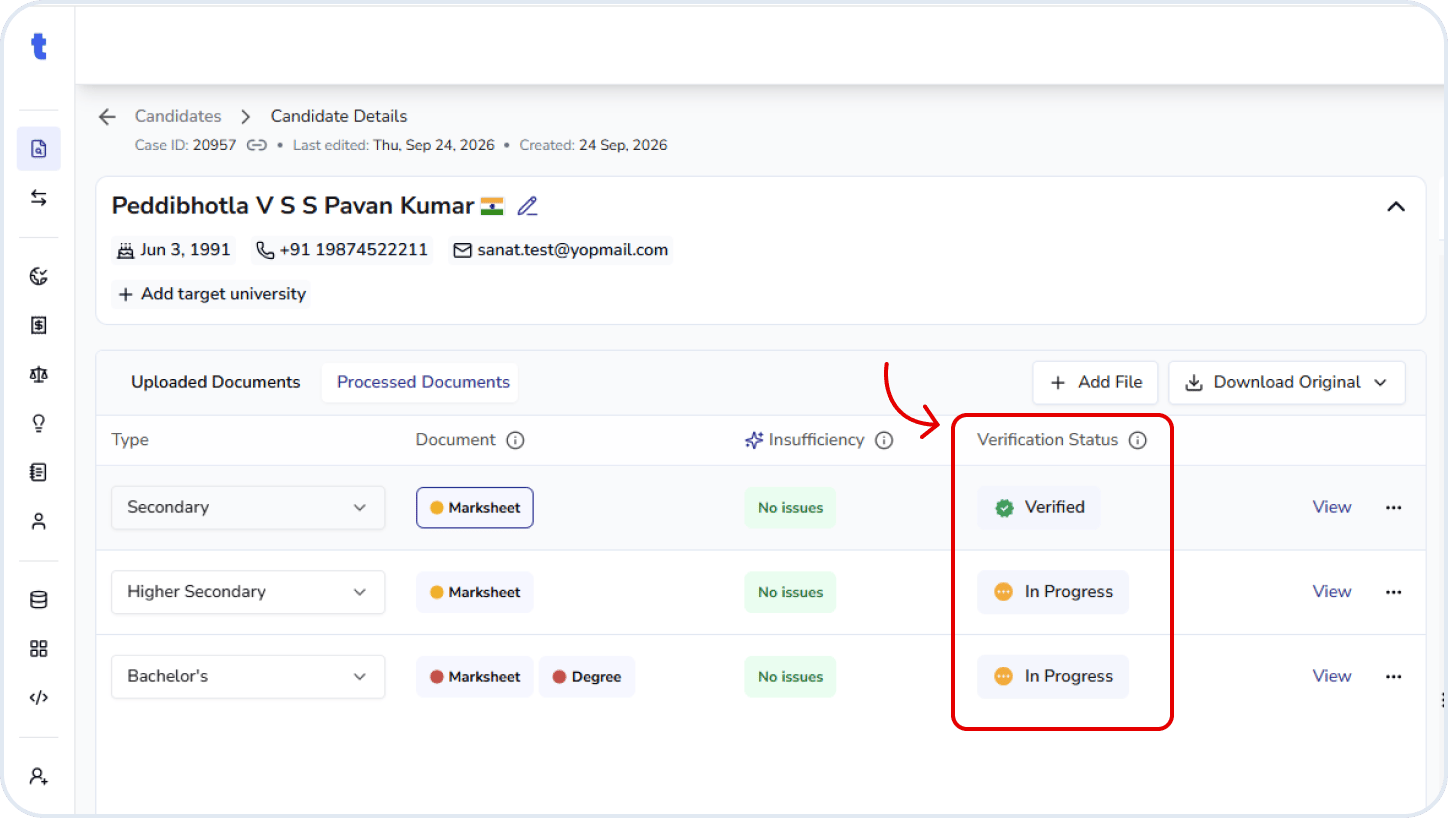
After verification is initiated, the **Verification Status** column appears in the document table.
The status indicates where each document is in the verification workflow:
* **Not initiated**: Verification has not been started for the document.
* **In Progress**: Verification is currently being processed.
* **Verified**: Verification has finished and the result is available.
* **Failed:** Verification could not be completed for the document.
* **Closed:** Verification has been closed and no further action is required.
When verification is in progress, you can continue working on other documents while TruEnroll processes the verification.
You can select multiple documents for verification at the same time.
## Track verification status
After verification is initiated, the **Verification Status** column appears in the document table.
The status indicates where each document is in the verification workflow:
* **Not initiated**: Verification has not been started for the document.
* **In Progress**: Verification is currently being processed.
* **Verified**: Verification has finished and the result is available.
* **Failed:** Verification could not be completed for the document.
* **Closed:** Verification has been closed and no further action is required.
When verification is in progress, you can continue working on other documents while TruEnroll processes the verification.
 ## View verification results
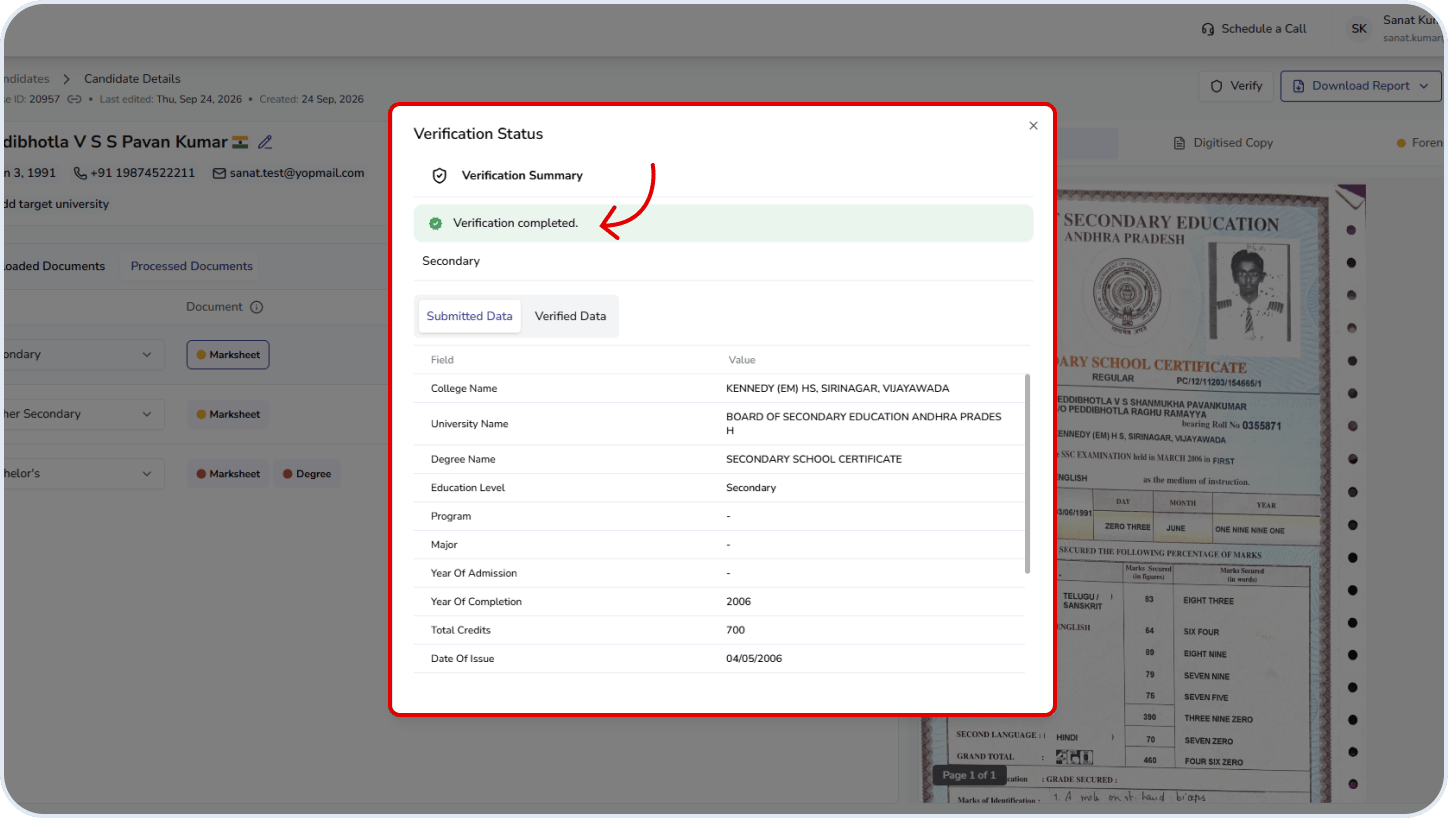
Once verification is complete, the document status changes to **Verified**.
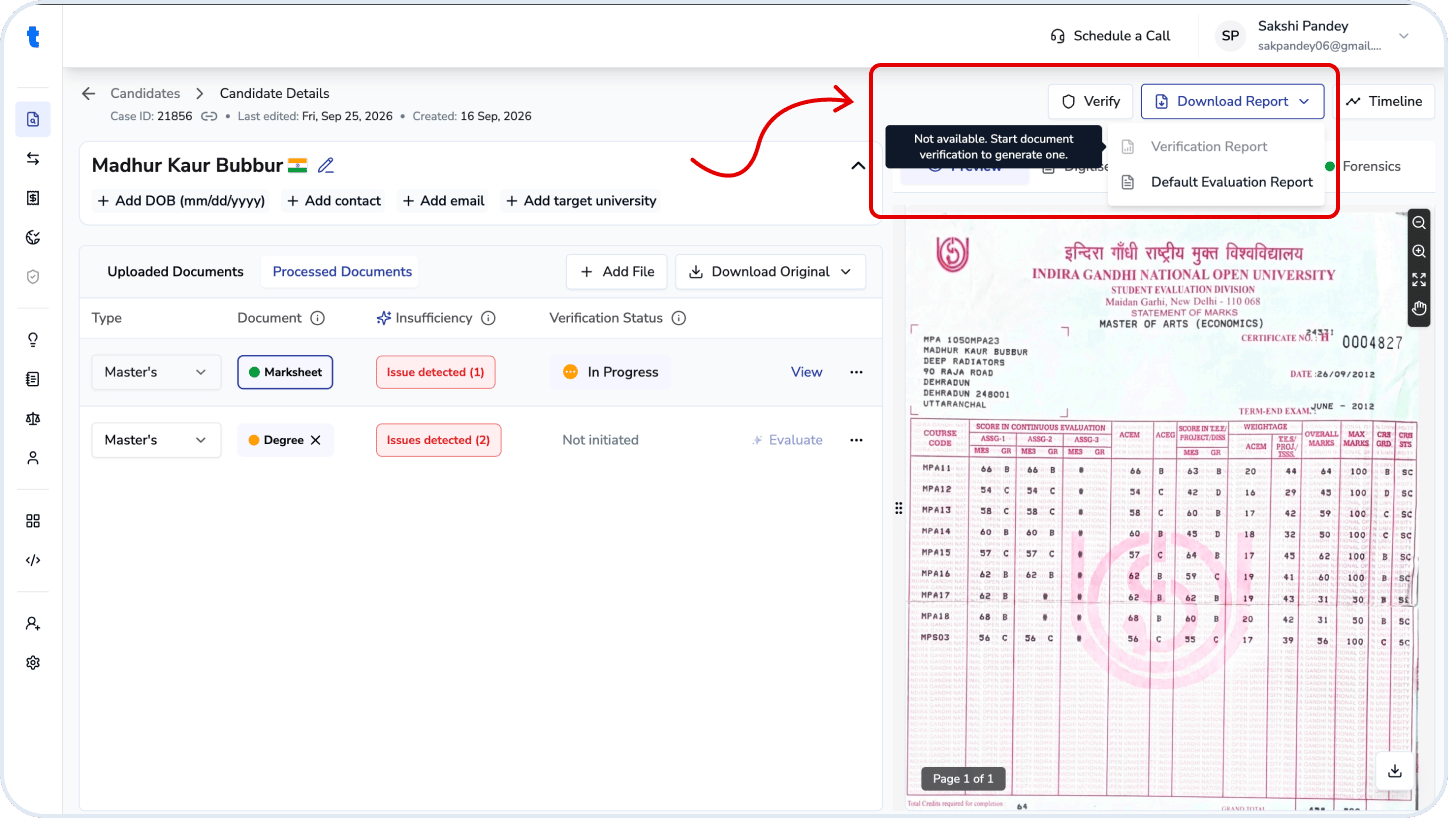
You can view the verification details by clicking the status button. You can also use the **Download Report** option to download the completed verification report.
## View verification results
Once verification is complete, the document status changes to **Verified**.
You can view the verification details by clicking the status button. You can also use the **Download Report** option to download the completed verification report.
 ## Related questions
Verification is typically completed within **2–3 weeks** after it is initiated. However, the turnaround time may vary depending on the document type and verification source, and may be longer when verification requires a response from the issuing university or institution.
You can select degree certificates, marksheets, and identity documents for verification.
Yes. You can select **multiple eligible documents** and initiate verification for them at the same time.
Review the reason provided for the failed verification and **use your judgment** to decide the next steps. Based on the reason, you can determine whether further action or follow-up is required.
In some cases, verification may not be possible due to **university disruptions or other circumstances that prevent us to verify the documents.**
Yes. You can cancel a verification if the case has not yet been initiated with the university. If the verification has already been initiated, contact \*\*[support@truenroll.com](mailto:support@truenroll.com) \*\*for assistance.
No. You can download the verification report only after **all selected documents have been verified.**
This documentation is built and hosted on [Mintlify](https://mintlify.com), a developer documentation platform.
## Related questions
Verification is typically completed within **2–3 weeks** after it is initiated. However, the turnaround time may vary depending on the document type and verification source, and may be longer when verification requires a response from the issuing university or institution.
You can select degree certificates, marksheets, and identity documents for verification.
Yes. You can select **multiple eligible documents** and initiate verification for them at the same time.
Review the reason provided for the failed verification and **use your judgment** to decide the next steps. Based on the reason, you can determine whether further action or follow-up is required.
In some cases, verification may not be possible due to **university disruptions or other circumstances that prevent us to verify the documents.**
Yes. You can cancel a verification if the case has not yet been initiated with the university. If the verification has already been initiated, contact \*\*[support@truenroll.com](mailto:support@truenroll.com) \*\*for assistance.
No. You can download the verification report only after **all selected documents have been verified.**
This documentation is built and hosted on [Mintlify](https://mintlify.com), a developer documentation platform.