> ## Documentation Index
> Fetch the complete documentation index at: https://docs.truenroll.com/llms.txt
> Use this file to discover all available pages before exploring further.
# Account Setup
> Sign in, get approved, and manage users in your TruEnroll account.
This section explains how you can sign in, access the platform, and manage users within your account.
## Login & Authentication
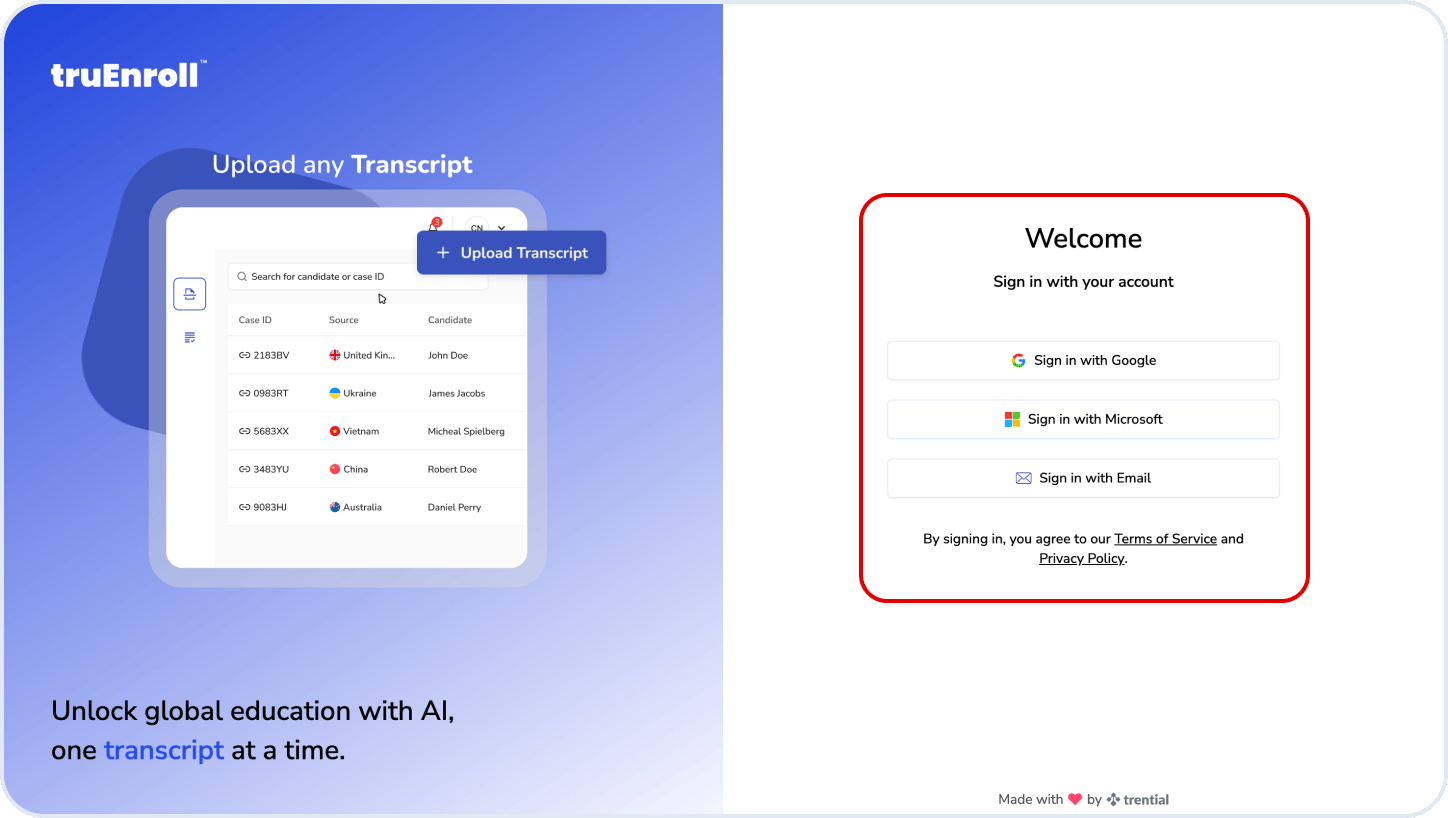
You can securely access the platform using any of the following options:
* **Email OTP Login** – Sign in using a one-time password sent to your email
* **Google Sign-In** – Quickly log in using your Google account
* **Microsoft Outlook Sign-In** – Access using your Microsoft account
These options help you sign in quickly and securely.
## Signing Up & Account Approval
When you sign up:
* Your account is created with an **"Under Approval"** status
* You won't have access until your account is reviewed
* The Trential team is automatically notified to review your request
Once your account is approved:
* You'll receive a **confirmation email**
* You can start using the platform
## Your Access Type
Once approved, you'll be assigned an access level:
* **Full Access** – You can use all features and perform unlimited evaluations
* **Trial Access** – You can use the platform with a limited number of evaluations
If you're on a trial, your account can be upgraded to full access later. Just mail to [support@truenroll.com](mailto:support@truenroll.com).
## Adding Team Members
If you're an administrator, you can add more users to your account:
* Invite team members with specific roles and permissions
* They'll receive an **email with a link to access the portal**
* Once they sign up, they'll automatically be added to your account
This helps you collaborate with your team easily.
## What Happens After You Sign Up
* You sign up → Your account is **pending approval**
* Once approved → You get access (trial or full)
* You start using the platform
* If you're on trial → You can be upgraded anytime
## How to get an account for your organization?
If your university does not yet have a TruEnroll account, you can request access by contacting our team. Once approved, you'll receive an invitation email to join your organization's workspace and begin evaluating candidates.
### Who can request an account?
You can request an account if you are:
* An admissions officer
* A registrar
* A credential evaluator
* An authorized university representative
### Requesting an account
Navigate to the TruEnroll login page and authenticate using your Email, Google, or Microsoft account
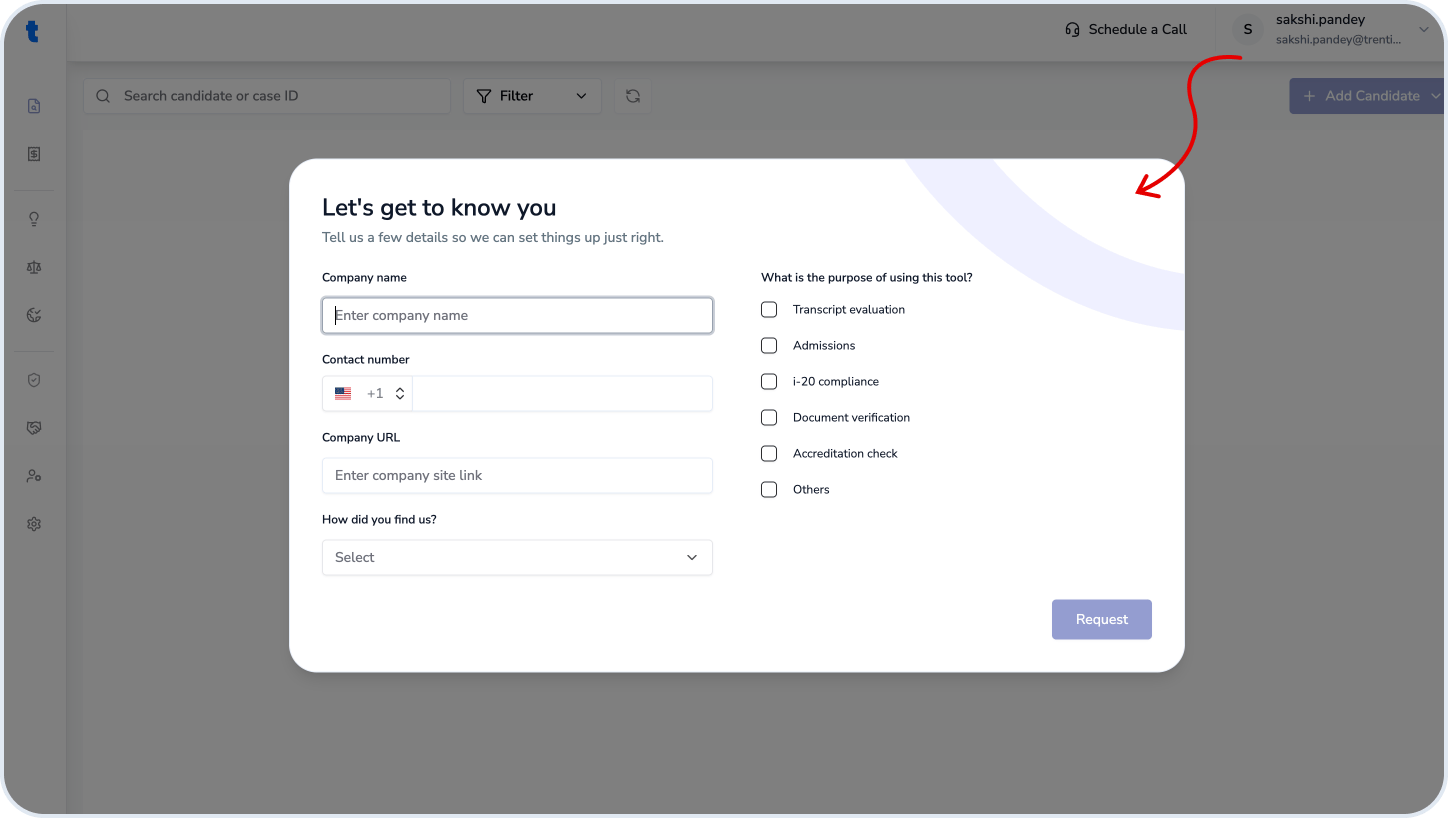
Provide your university details, including:
* University name
* Official email address
* Department
* Program or evaluation requirements
Submit your request.
Our team will review the information and verify your institution/organization.
Once approved, you'll receive an invitation email containing a link to activate your account.
### What happens next?
After activation, you'll be able to:
* Upload candidate documents
* Review extracted data
* Run evaluations
* Generate reports
* Collaborate with your team
## Related questions
Most requests are approved within 1–2 business days.
Yes. Account administrators can invite additional users and assign roles.
Check your spam folder or contact support [support@truenroll.com](mailto:support@truenroll.com).