> ## Documentation Index
> Fetch the complete documentation index at: https://docs.truenroll.com/llms.txt
> Use this file to discover all available pages before exploring further.
# Data Extraction Review
> Review, edit, and validate data extracted from candidate documents.
## Extraction Overview
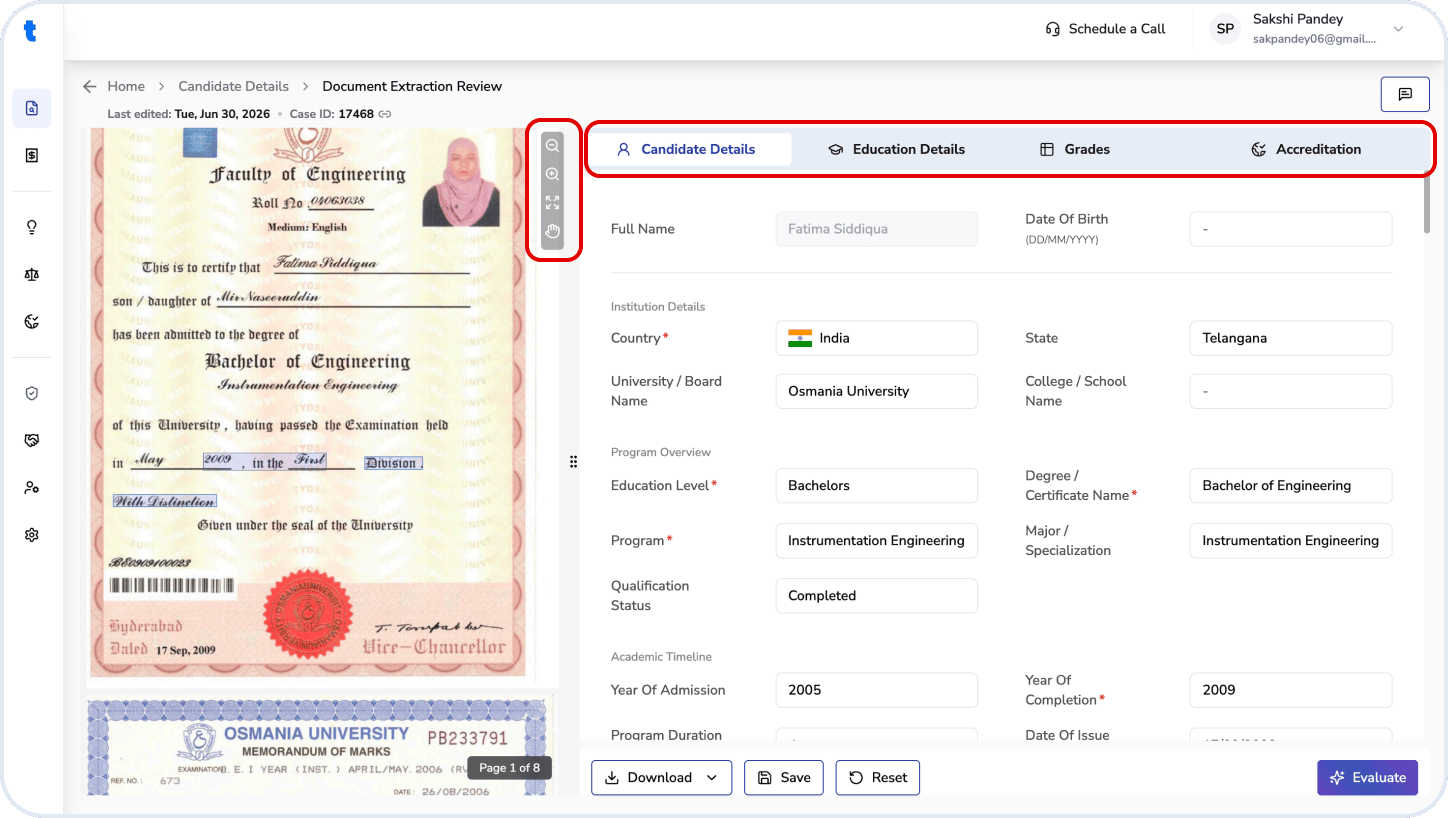
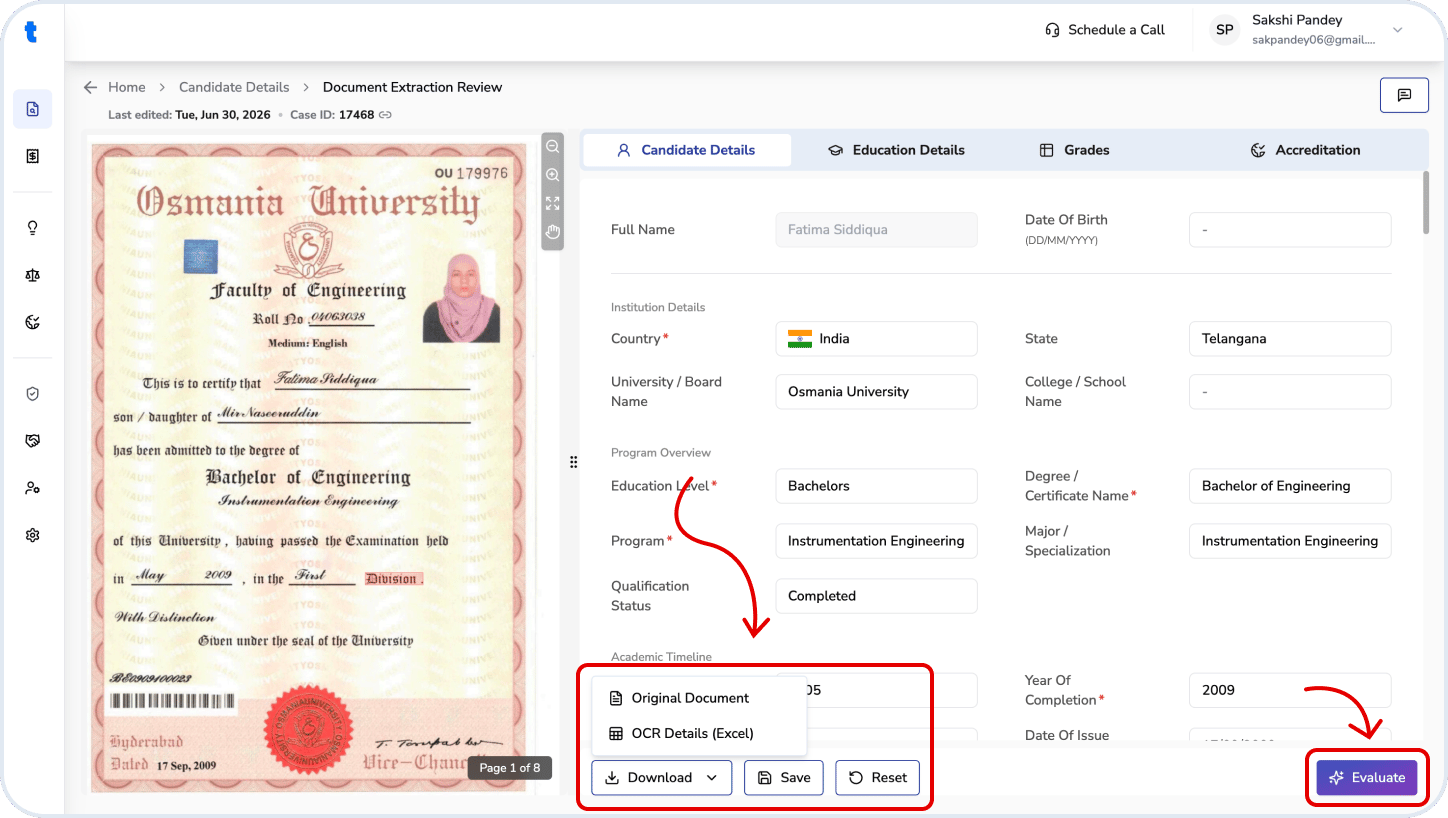
This page displays how the document has been extracted into structured fields. On the left, you will see the document preview. You can navigate, zoom in, and zoom out.
On the right, extracted data is organized into three tabs. An additional **Accreditation** tab provides details for evaluating qualification recognition and the issuing institution.
## Traceability and Review
The tool is designed for transparency and auditability:
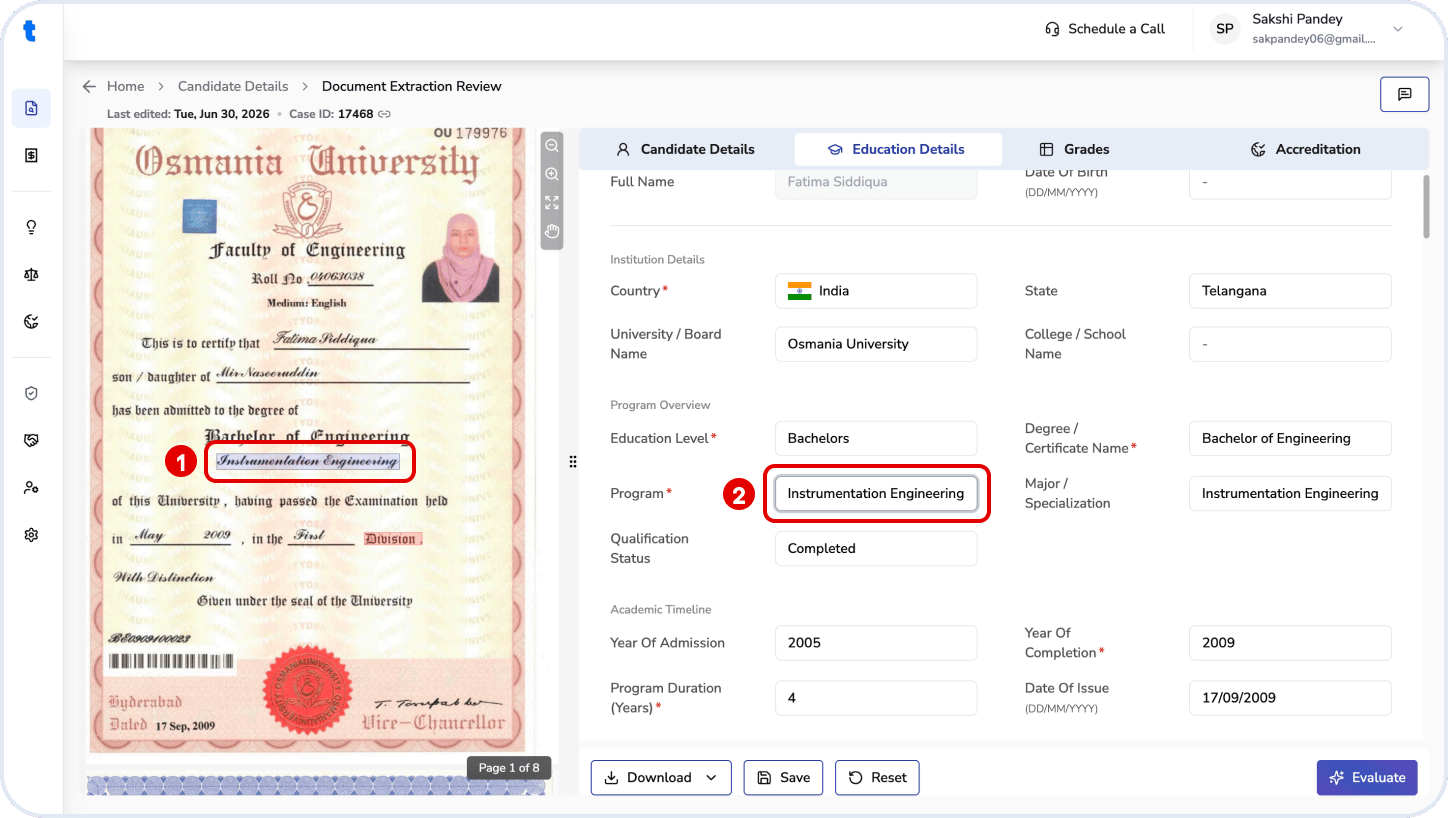
1. Click any extracted field to highlight its source in the document (on the left) highlighted in **blue**.
2. Click any part of the document to see which field it maps to.
All extracted data is editable:
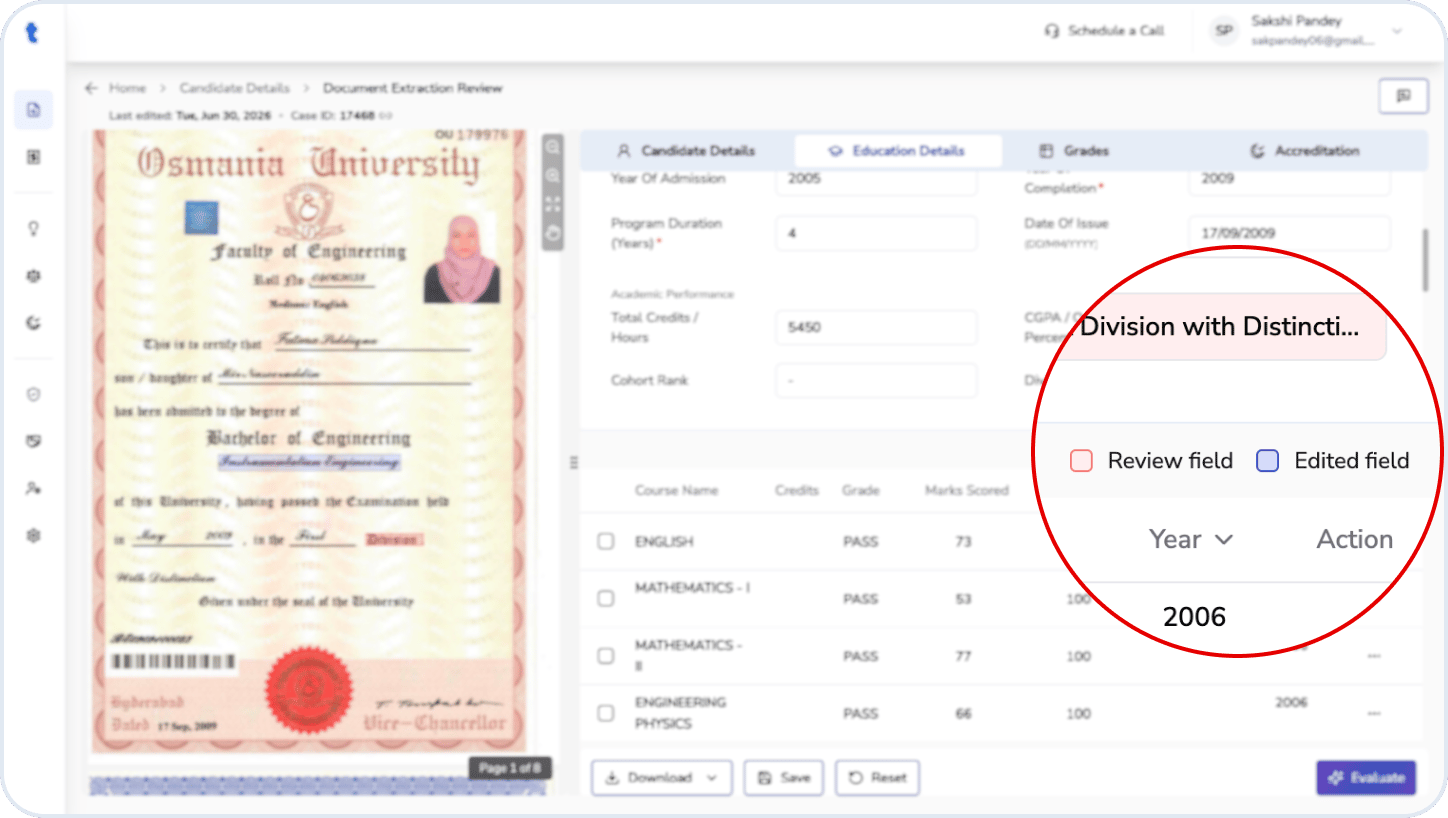
* **Edited fields** are highlighted in **blue** (before saving).
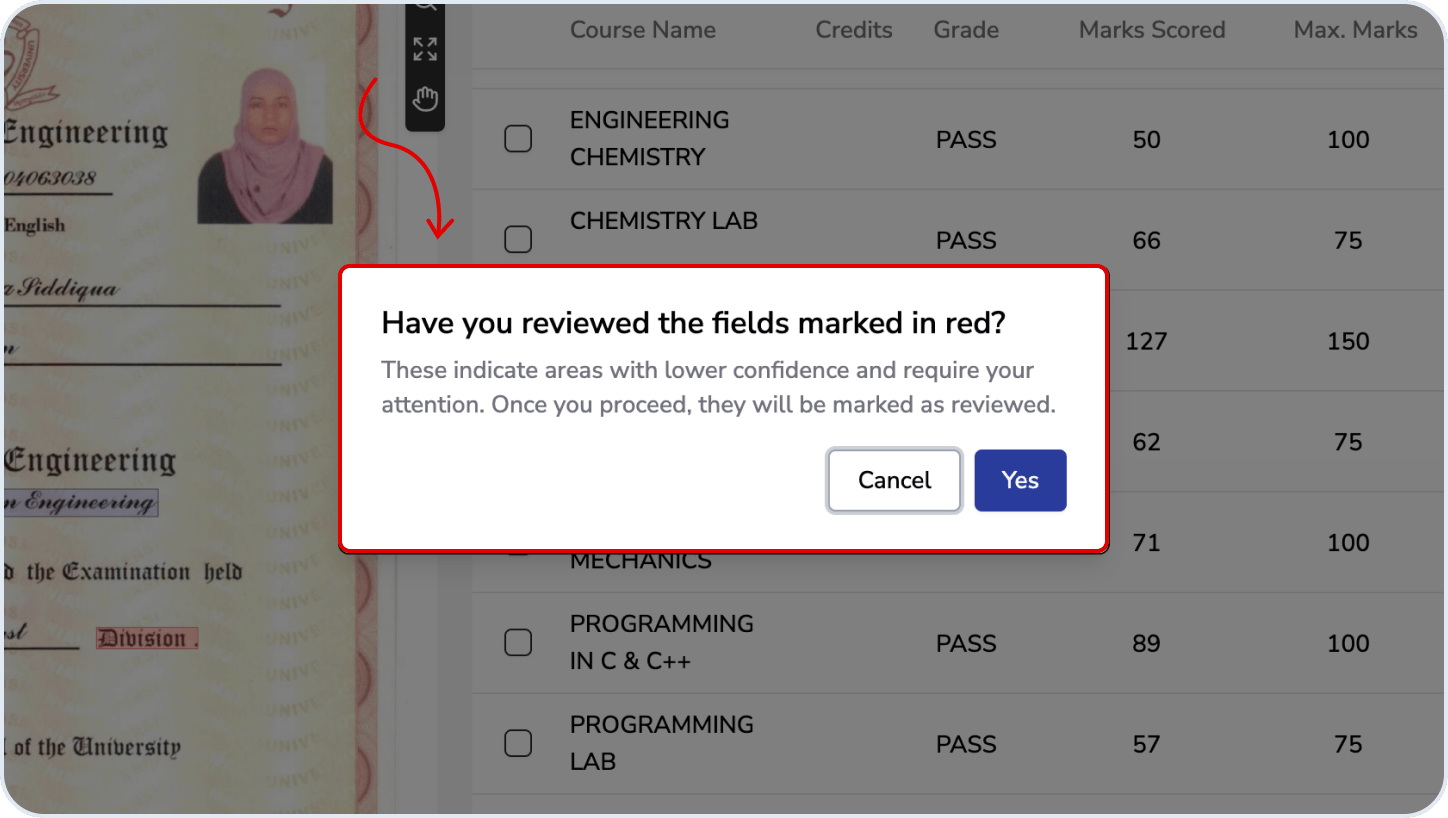
* **Low-confidence fields** are highlighted in **red** and should be reviewed.
After making changes, click **Save**. When ready, proceed by clicking **Evaluate**. You can also download the original file and the OCR output (Excel format) using the **Download** option
## Field Structure
### Candidate Details
* **Full Name** (pre-filled)
* Date of Birth
### Education Details
Required fields:
* Country
* Education Level
* Degree / Certificate Name
* Program Name
* Program Duration (Years)
If any required fields are not extracted automatically, complete them manually based on your judgment. These fields are essential for accreditation assessment and equivalency recommendations in the next step.
Optional fields:
* State
* University/Board Name
* College / School Name
* Major / Specialization
* Year of Completion
* Qualification Status
* Level of Education (e.g., Secondary, Bachelor's)
* Year of Admission
* Date of Issue
* Final Grade
* Total Credits/Hours
* Cohort Rank
* CGPA / Overall Percentage
* Division
### Grades
This section lists all courses from the transcript. Each row includes:
* CIP Code
* Course Name
* Credits
* Grade
* Marks Scored
* Maximum Marks
* Session (Term & Year)
You can:
* Add or delete rows as needed (...)
* Edit any field to correct or complete the extracted data
* Remove course
Ensure all entries accurately reflect the transcript before proceeding to evaluation.
## Related questions
Yes, but only **Organization Super Admins** can edit CIP Codes. If the suggested CIP Code is incorrect or unavailable, an Organization Super Admin can manually update it during the evaluation. Any approved changes will be reflected in the evaluation and included in the final report after it is saved.
Yes, but only **Organization Super Admins** can edit the **SCED Scale**. If the assigned SCED Scale is incorrect or unavailable, an Organization Super Admin can update it during the evaluation. Any changes will be reflected in the evaluation and included in the final report after it is saved.
Yes, but only **Organization Super Admins** can modify the assigned **CIP Code** or **SCED classification**. If the suggested classification is incorrect or unavailable, they can manually update it during the evaluation. Any changes will be reflected in the evaluation and included in the final report after it is saved.
 ## Traceability and Review
The tool is designed for transparency and auditability:
1. Click any extracted field to highlight its source in the document (on the left) highlighted in **blue**.
2. Click any part of the document to see which field it maps to.
## Traceability and Review
The tool is designed for transparency and auditability:
1. Click any extracted field to highlight its source in the document (on the left) highlighted in **blue**.
2. Click any part of the document to see which field it maps to.
 All extracted data is editable:
* **Edited fields** are highlighted in **blue** (before saving).
* **Low-confidence fields** are highlighted in **red** and should be reviewed.
All extracted data is editable:
* **Edited fields** are highlighted in **blue** (before saving).
* **Low-confidence fields** are highlighted in **red** and should be reviewed.
 After making changes, click **Save**. When ready, proceed by clicking **Evaluate**. You can also download the original file and the OCR output (Excel format) using the **Download** option
 ## Field Structure
### Candidate Details
* **Full Name** (pre-filled)
* Date of Birth
### Education Details
Required fields:
* Country
* Education Level
* Degree / Certificate Name
* Program Name
* Program Duration (Years)
## Field Structure
### Candidate Details
* **Full Name** (pre-filled)
* Date of Birth
### Education Details
Required fields:
* Country
* Education Level
* Degree / Certificate Name
* Program Name
* Program Duration (Years)