> ## Documentation Index
> Fetch the complete documentation index at: https://docs.truenroll.com/llms.txt
> Use this file to discover all available pages before exploring further.
# Review Documents
> Review candidate details, documents, previews, and actions in the Evaluations page.
## Reviewing a Candidate
Click a candidate in the **Evaluations** page to open their profile. This page includes:
* Candidate details (extracted from documents)
* Documents (uploaded and processed)
* File preview (raw and translated)
## Candidate Details
Basic details such as Full Name, Date of Birth, Email, and Contact Number are auto-extracted where possible.
* **Full Name is required** to proceed. Enter it manually if missing.
* Other fields are optional and can be edited at any time.
## Documents
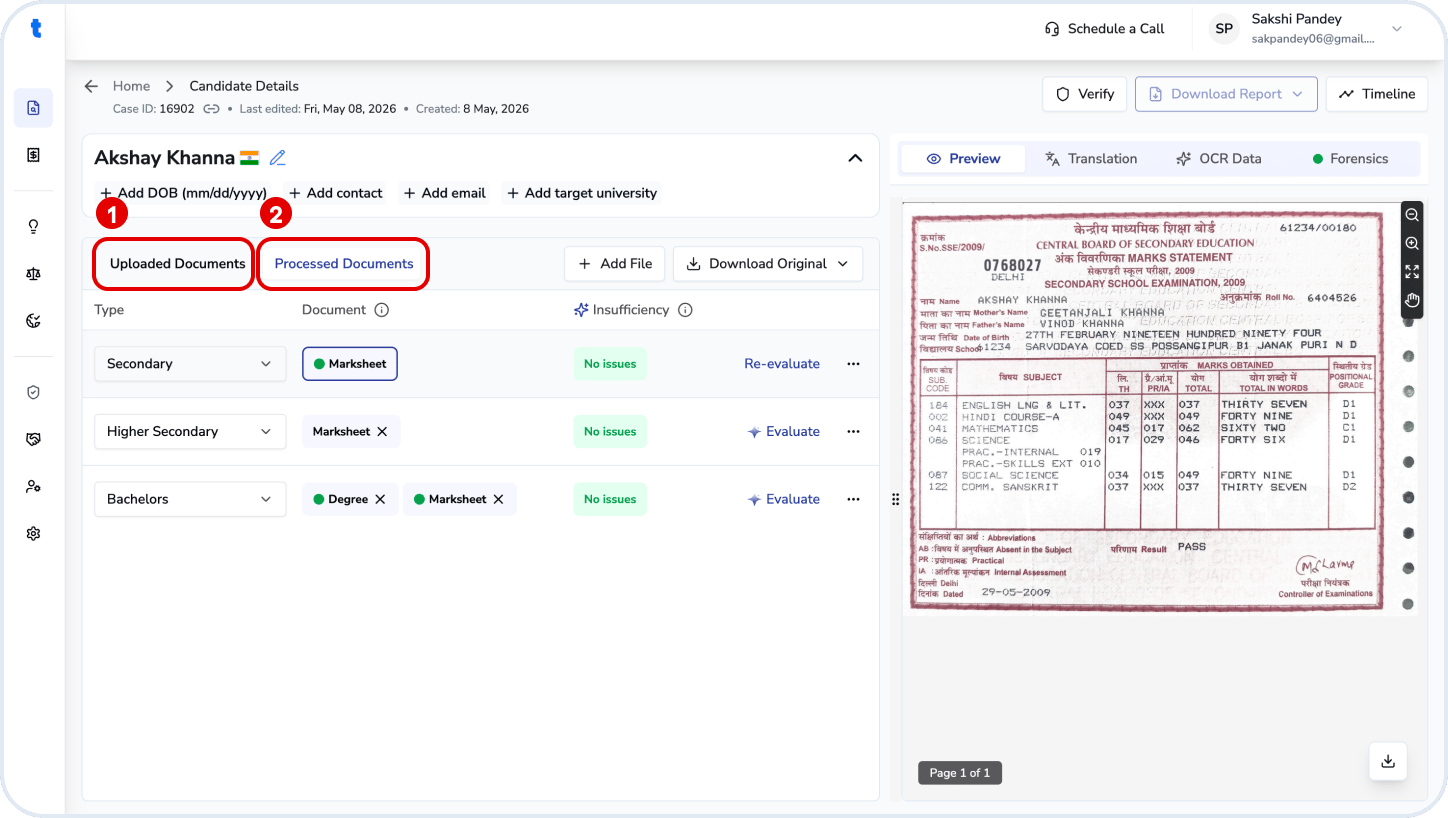
Documents are organized into two tabs:
1. **Uploaded**
* View processing status
* Preview or download original files
2. **Processed**
Documents are structured using two levels:
* **Broad categories** (e.g., Bachelor, Master, High School, Identity, Miscellaneous)
* **Granular types** (e.g., marksheet, degree, passport)
You can:
* Flag issues using **Insufficiency** (see Insufficiencies)
* Click **Evaluate/View** to open transcript evaluation
* Select a document to view its preview
 ## Preview Panel
The right panel shows a preview of the selected document.
You can also:
* Click **Forensics** to view the fraud detection report
* Select **OCR** to view the translated, digitized version (download via the blue icon)
* Access the **Timeline** of changes to the case file
* Download evaluation and verification reports via **Download Reports**
## Actions
* **Add documents** → Use *Add Documents* or “+” to upload files
* **Delete documents** → Use “x” (single file) or “…” (entire group)
* **Verify documents** → Start from *Verify Documents* and close via “…”
***
## How to add more documents?
You can upload additional documents to an existing candidate at any stage before completing the evaluation. Newly uploaded documents will be added to the candidate's record and can be reviewed, extracted, and evaluated as needed.
### Step 1: Open the candidate details
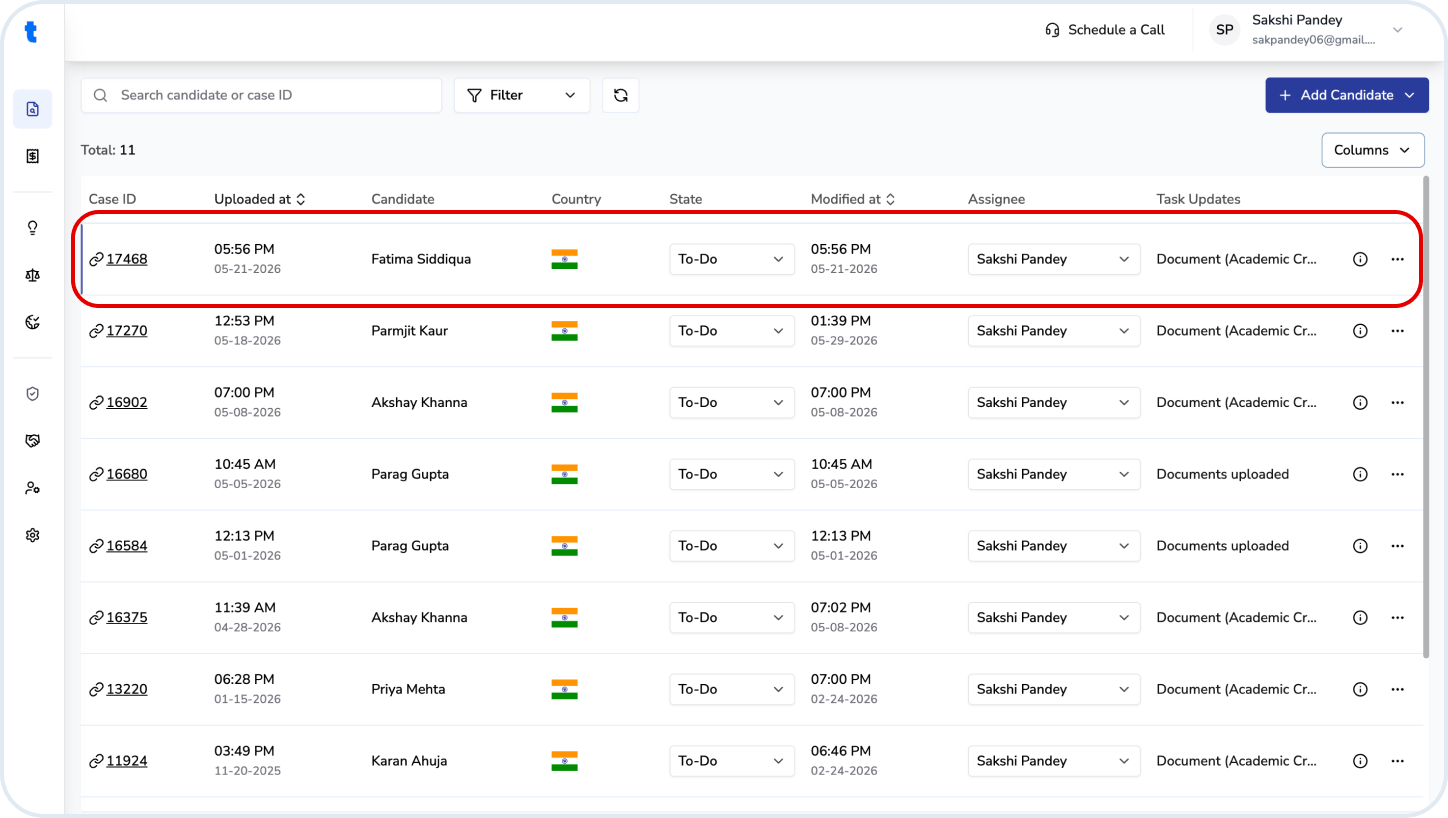
Navigate to **Manage Cases (Home)** and select the candidate you want to update.
## Preview Panel
The right panel shows a preview of the selected document.
You can also:
* Click **Forensics** to view the fraud detection report
* Select **OCR** to view the translated, digitized version (download via the blue icon)
* Access the **Timeline** of changes to the case file
* Download evaluation and verification reports via **Download Reports**
## Actions
* **Add documents** → Use *Add Documents* or “+” to upload files
* **Delete documents** → Use “x” (single file) or “…” (entire group)
* **Verify documents** → Start from *Verify Documents* and close via “…”
***
## How to add more documents?
You can upload additional documents to an existing candidate at any stage before completing the evaluation. Newly uploaded documents will be added to the candidate's record and can be reviewed, extracted, and evaluated as needed.
### Step 1: Open the candidate details
Navigate to **Manage Cases (Home)** and select the candidate you want to update.
 ### Step 2: Go to Documents
From the Candidate Details page, open the **Documents** section.
### Step 3: Upload additional documents
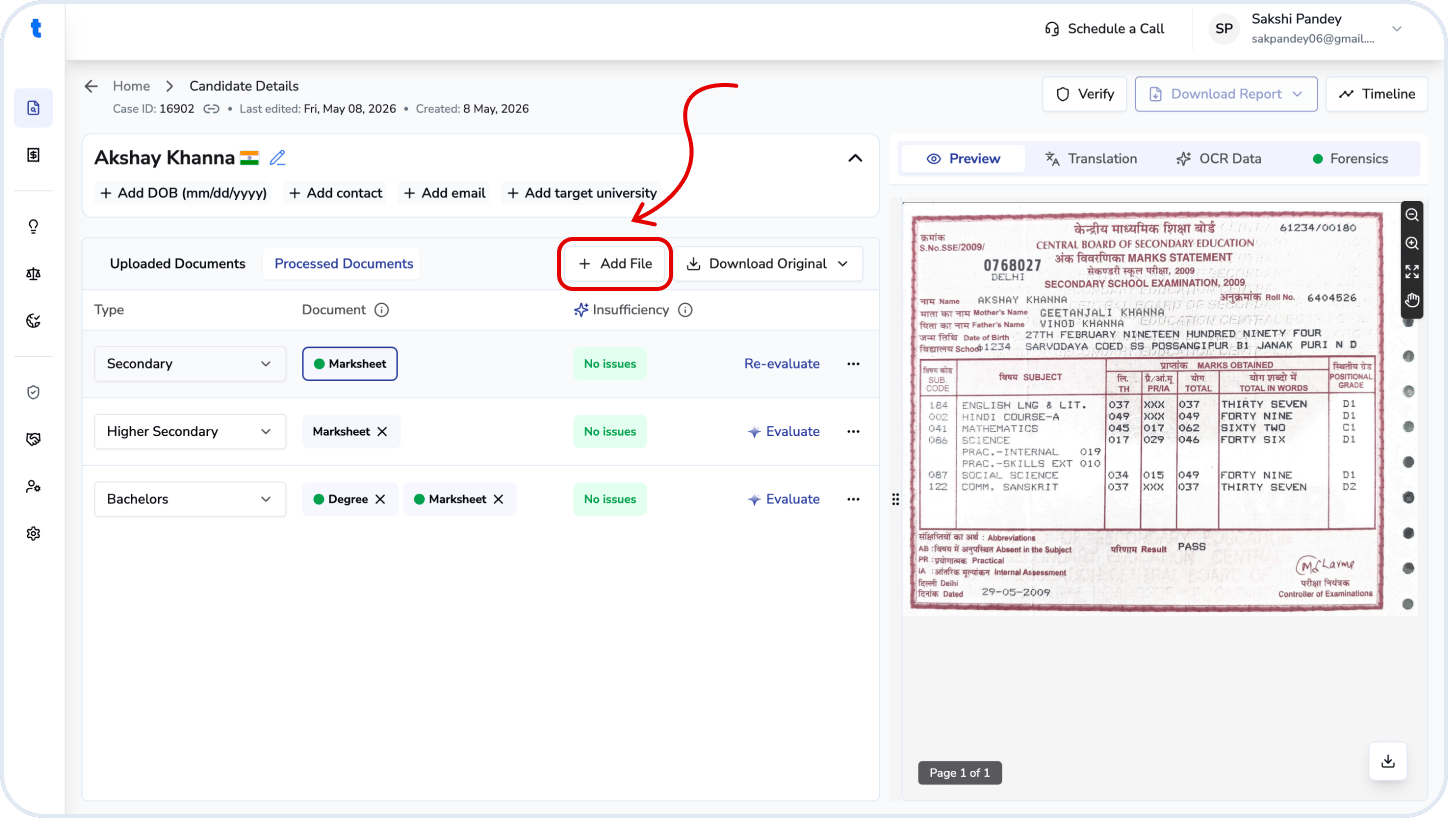
Click the **Add files** button and select the files you want to add.
### Step 2: Go to Documents
From the Candidate Details page, open the **Documents** section.
### Step 3: Upload additional documents
Click the **Add files** button and select the files you want to add.
 You can upload:
* Degree certificates
* Mark sheets / transcripts
* Supporting academic documents
* Letters of Authorization (LoA)
* Other documents
### Step 4: Review uploaded documents
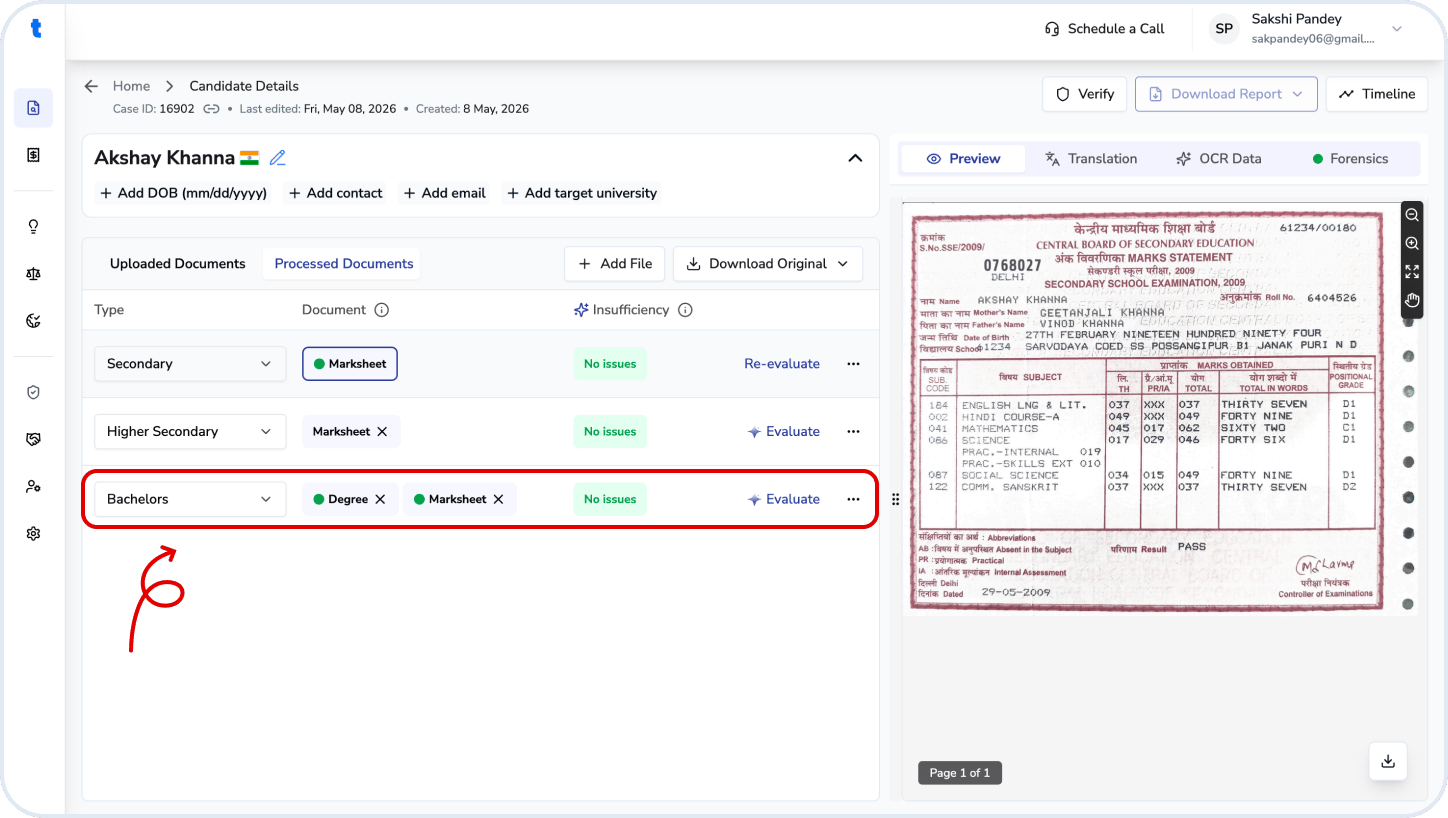
Once uploaded, the documents will appear in the document list and become available for extraction, translation, forensics, and evaluation workflows.
You can upload:
* Degree certificates
* Mark sheets / transcripts
* Supporting academic documents
* Letters of Authorization (LoA)
* Other documents
### Step 4: Review uploaded documents
Once uploaded, the documents will appear in the document list and become available for extraction, translation, forensics, and evaluation workflows.
 If you've already completed an evaluation, review the newly uploaded documents before generating or downloading a final report.
## Related questions
Open the candidate details page and navigate to the **OCR data & Digitized copy** tab. Once the translation is complete, you can review and download the translated version of the document.
Open the candidate details page and go to the **Forensics** tab. Click the **Download Report** icon at the bottom to export the forensic analysis and findings.
Open the candidate details page and select the **Timeline** tab at the top right. Here, you can view all actions, updates, evaluations, and document-related activities associated with the candidate.
Yes. Open the candidate details page, click **Edit Details**, update the candidate's name or other details, and save your changes.
Yes. Navigate to the relevant education level row, click and open the dropdown, then update the education level before proceeding with evaluation.
Open the candidate details page and click the **Verify** button from the evaluation workflow. Select the required verification type and submit the request to begin the verification process.
If you've already completed an evaluation, review the newly uploaded documents before generating or downloading a final report.
## Related questions
Open the candidate details page and navigate to the **OCR data & Digitized copy** tab. Once the translation is complete, you can review and download the translated version of the document.
Open the candidate details page and go to the **Forensics** tab. Click the **Download Report** icon at the bottom to export the forensic analysis and findings.
Open the candidate details page and select the **Timeline** tab at the top right. Here, you can view all actions, updates, evaluations, and document-related activities associated with the candidate.
Yes. Open the candidate details page, click **Edit Details**, update the candidate's name or other details, and save your changes.
Yes. Navigate to the relevant education level row, click and open the dropdown, then update the education level before proceeding with evaluation.
Open the candidate details page and click the **Verify** button from the evaluation workflow. Select the required verification type and submit the request to begin the verification process.