> ## Documentation Index
> Fetch the complete documentation index at: https://docs.truenroll.com/llms.txt
> Use this file to discover all available pages before exploring further.
# Uploading Candidates
> Add candidates and upload their documents for AI-powered processing.
If you are using the Slate integration, navigate to the **Slate Integration** page (coming soon).
## Adding a Candidate (AI-Powered Upload)
* Go to the **Evaluations** tab from the left panel (if not already selected).
* This page displays all uploaded candidates, along with their status, assignee, and other details.
* You can also add new candidate instances from this page.
## Steps to Add a Candidate
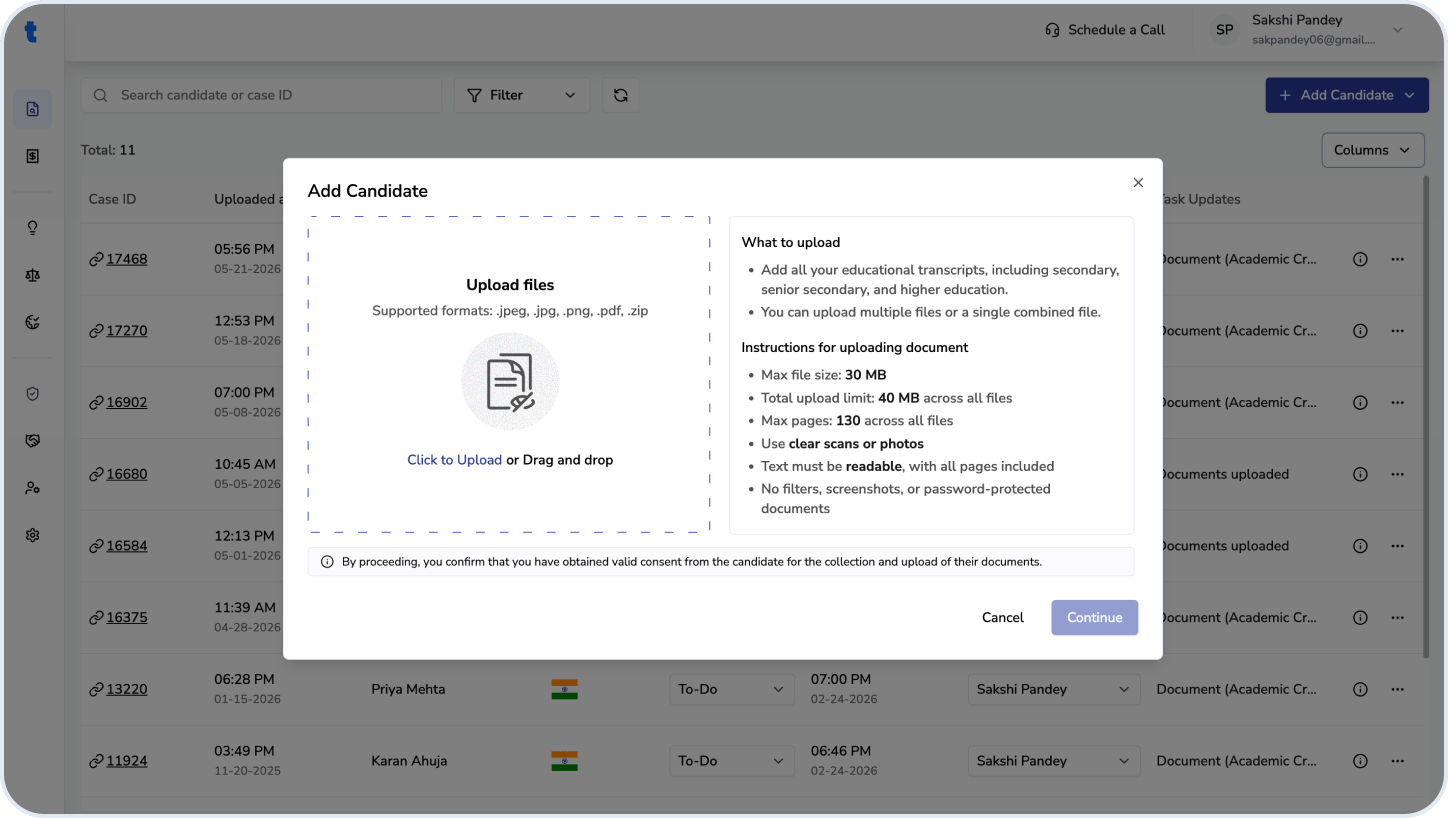
1. Click the **Add Candidate** button in the top-right corner.
2. Select **AI Powered** (manual upload is currently disabled).
3. A pop-up window will appear. You can upload candidate files in either of the following ways:
* Drag and drop files into the highlighted area.
* Click to browse and upload files.
Supported formats: **.jpeg, .jpg, .png, .pdf**, or a single **.zip** file containing all documents.
4. After adding all required files, click **Continue**.
5. Wait for the files to be processed. This may take **1–10 minutes**, depending on server load.
6. For efficiency, it is recommended to upload candidates in batches.
**Note**
* Ensure that all documents for a candidate are uploaded within the same candidate instance.
* If any files are missed during this step, they can be added later in the **Review Candidate Files and Details** stage using the **Add Files** button.