

Grade Scale
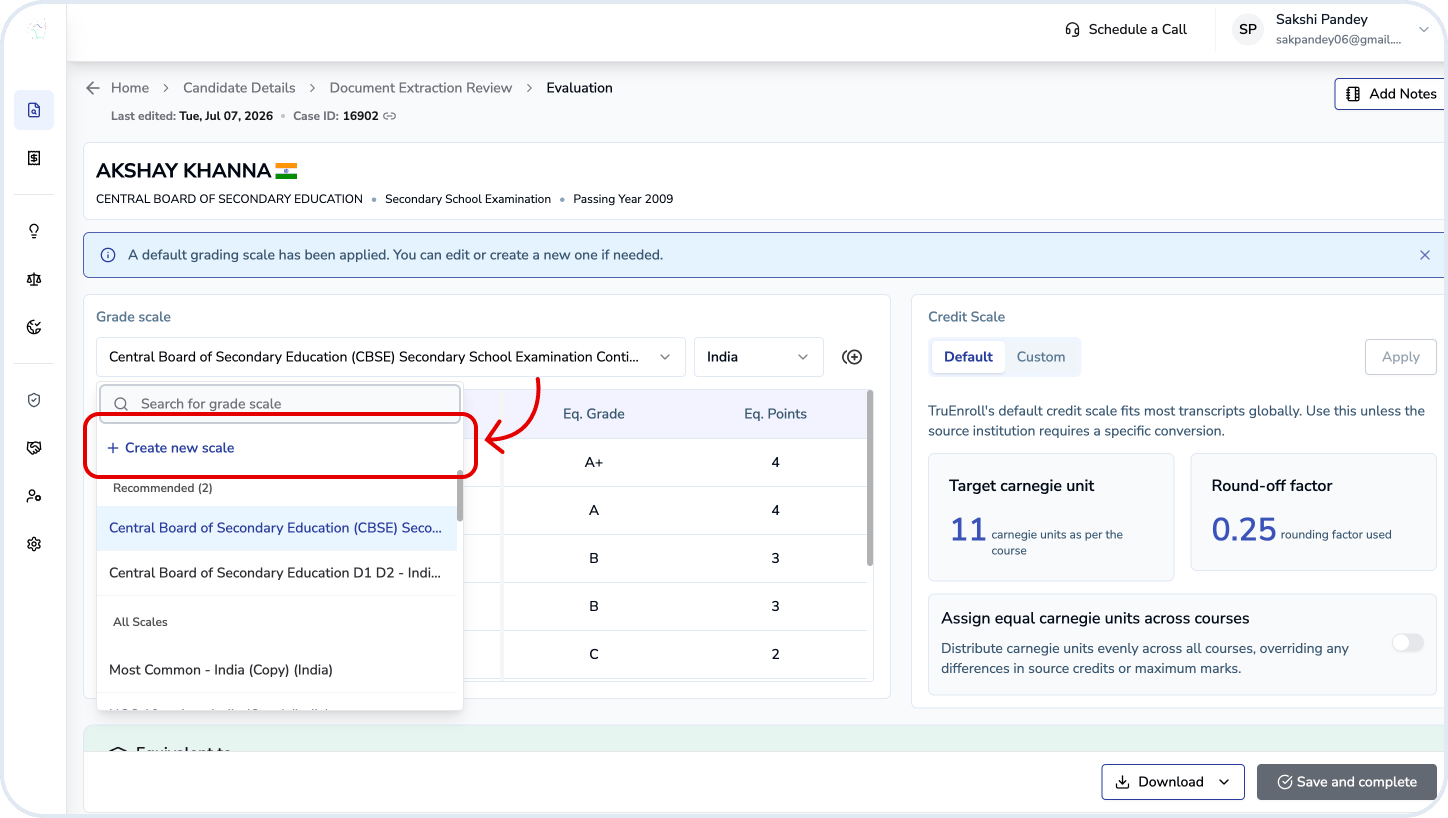
The Grade Scale maps source grades to standardized equivalents. A default scale is automatically applied based on country and education level, but you can select an alternate recommended (default) scale or create a new one.Use the dropdown to search available scales.
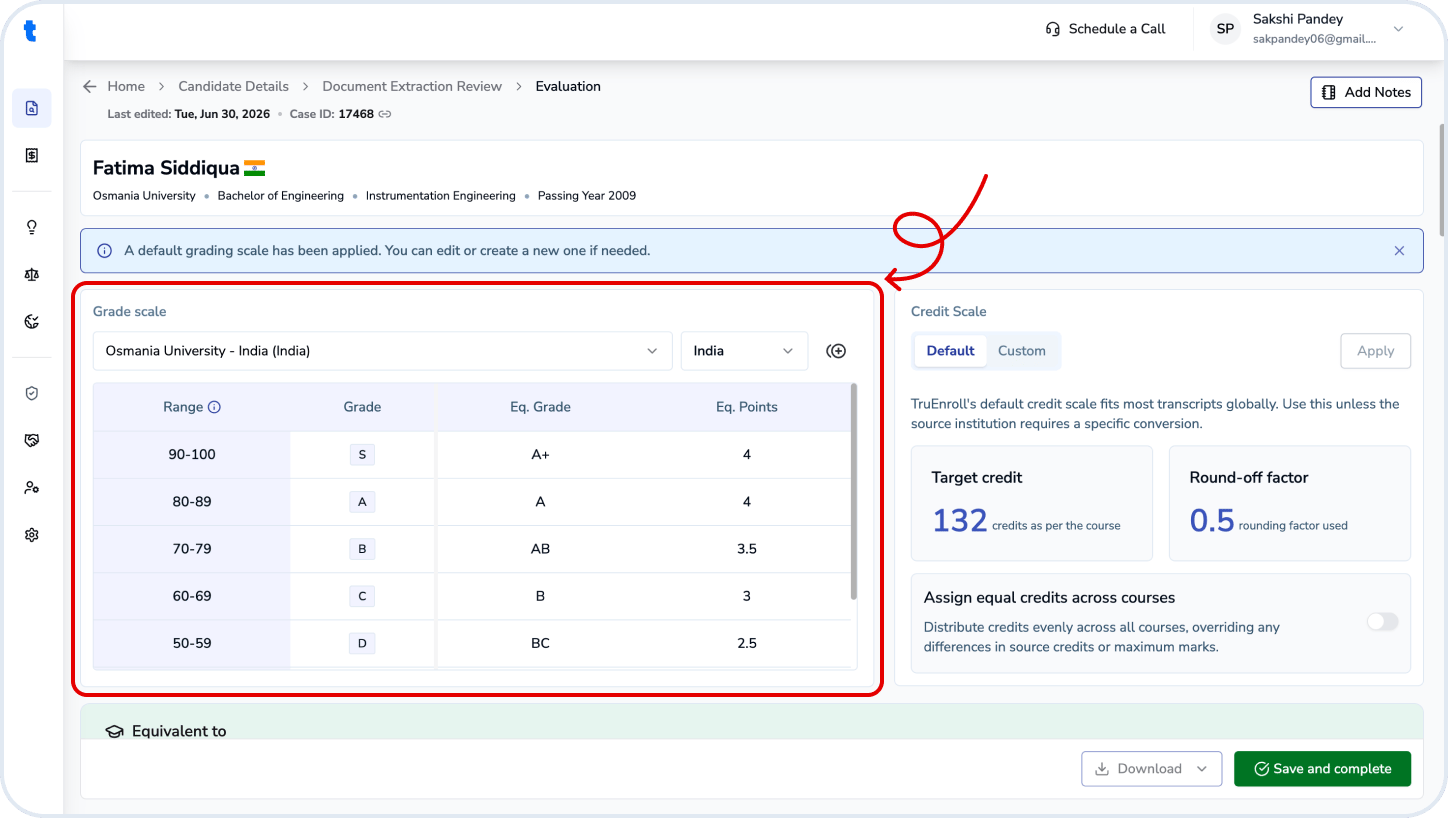
Creating or Editing a Scale
- Click ”+” to create/edit a grading scale
- Provide name and basic details about the scale
- Define:
- Grade ranges (Range 1 / Range 2)
- Grade labels (e.g., Excellent, 30L)
- Equivalent grades (A, B, etc.)
- Equivalent points (e.g., 4, 3)
- Some fields will be auto-filled according to the selected scale but can be edited.
Only one input dimension is used for mapping (either range or grade label). The combination of the two is not used for equivalency mappings. For instance in case of non-numeric grades (like cum laude), you may need to define mappings for the numeric grades explicitly under the Grade field, even if ranges are present. This is a known limitation and may be improved in future versions.
Credit Scale
The Credit Scale standardizes course credits using either the default or a custom scale. The default is recommended for most cases. This is chosen based on program length, program and issuing country and knowledge of standard pathways in the country’s educational setup. For custom scales, define target credits (total US equivalent program credits) and a round-off factor (step size used for rounding). You can optionally enable equal credit distribution across courses, then click Apply to update the conversionFor custom scales, define target credits (total US equivalent program credits) and a round-off factor (step size used for rounding). You can optionally enable equal credit distribution across courses, then click Apply to update the conversion.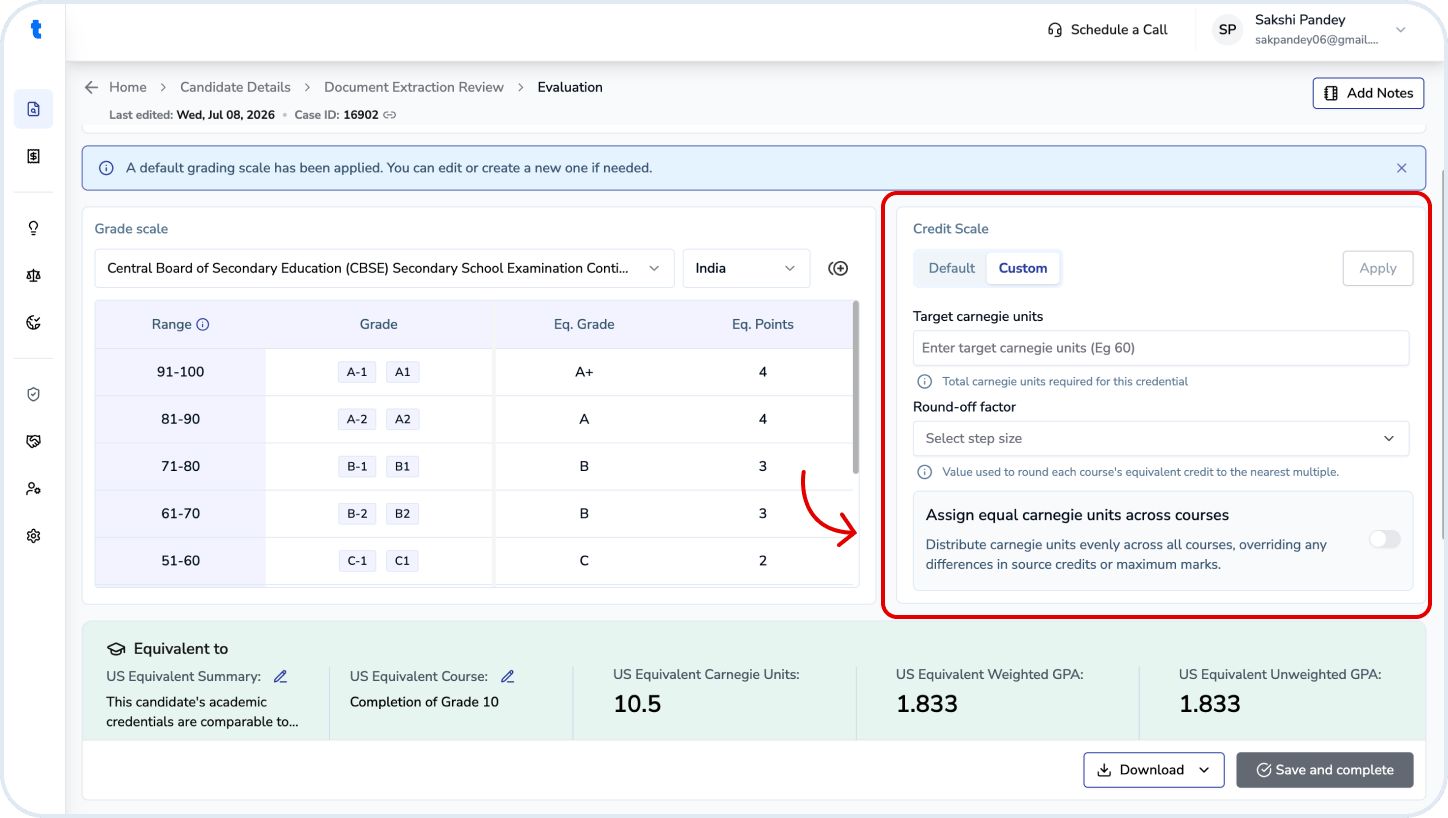
Equivalency Summary
This section shows the final outputs:- US Equivalent Summary
- US Equivalent Course
- US Equivalent Credits
- Weighted GPA
- Unweighted GPA

Course-Level Evaluation
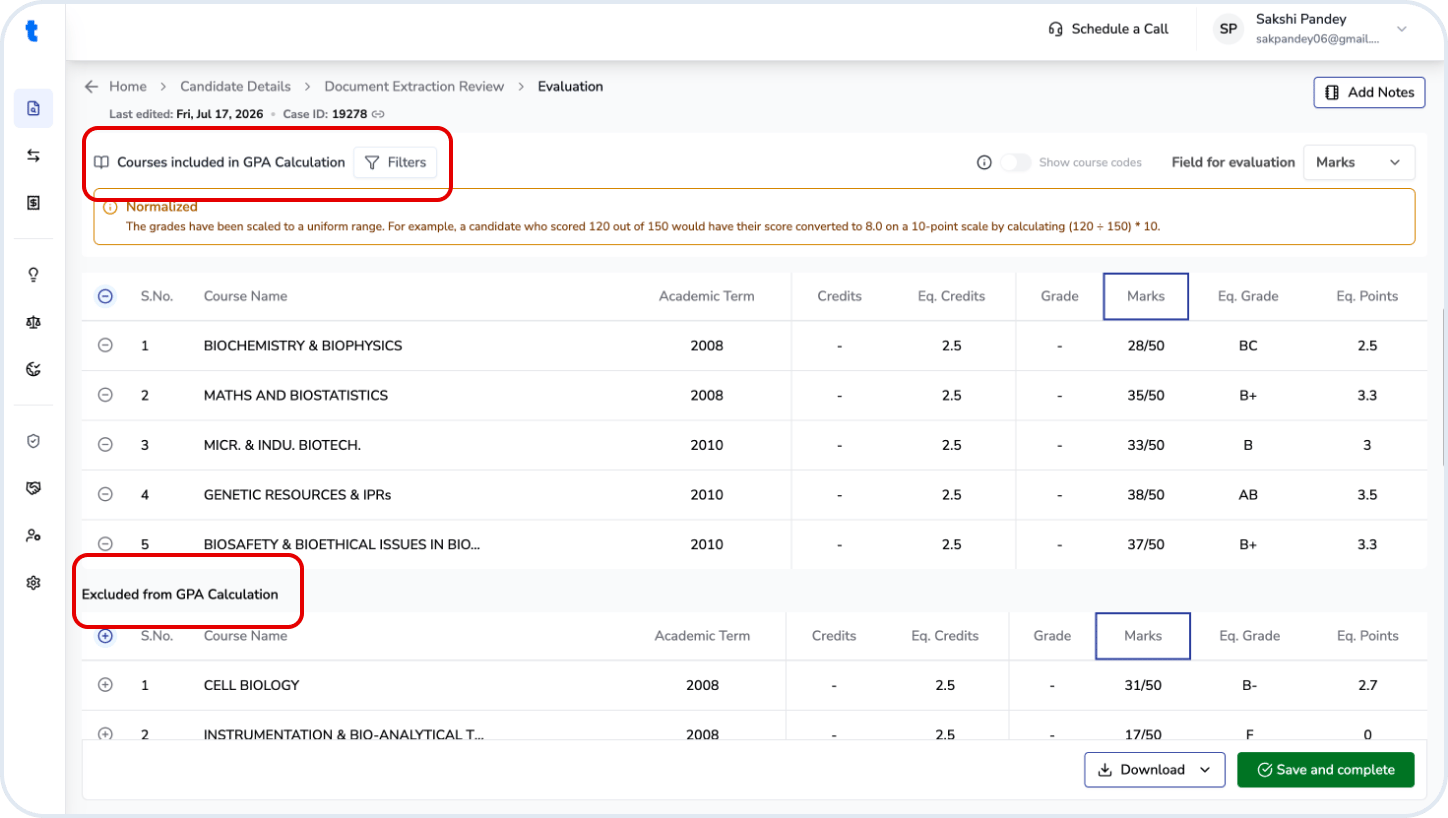
Each course is listed with course name, CIP code, academic term, credits and equivalent credits, grade or marks, and the resulting equivalent grade and points.Each course is listed with course name, CIP code, academic term, credits and equivalent credits, grade or marks, and the resulting equivalent grade and points. You can:- Toggle Show CIP codes
- Select the Field for evaluation (Grade or Marks)
Included vs Excluded Courses
Courses are split into those included in GPA calculation and those excluded. Exclusions typically include pass/fail courses, seminars, or thesis components. You can also opt to exclude non-core courses even when gradable, based on institutional policy. You can shift courses between the buckets by clicking on the ”+” and ”-” symbols. Courses for which an equivalent grade cannot be computed are not allowed to be included for GPA calculation. Review to ensure courses are correctly categorized.Final Action
- Save and complete → Finalize the evaluation
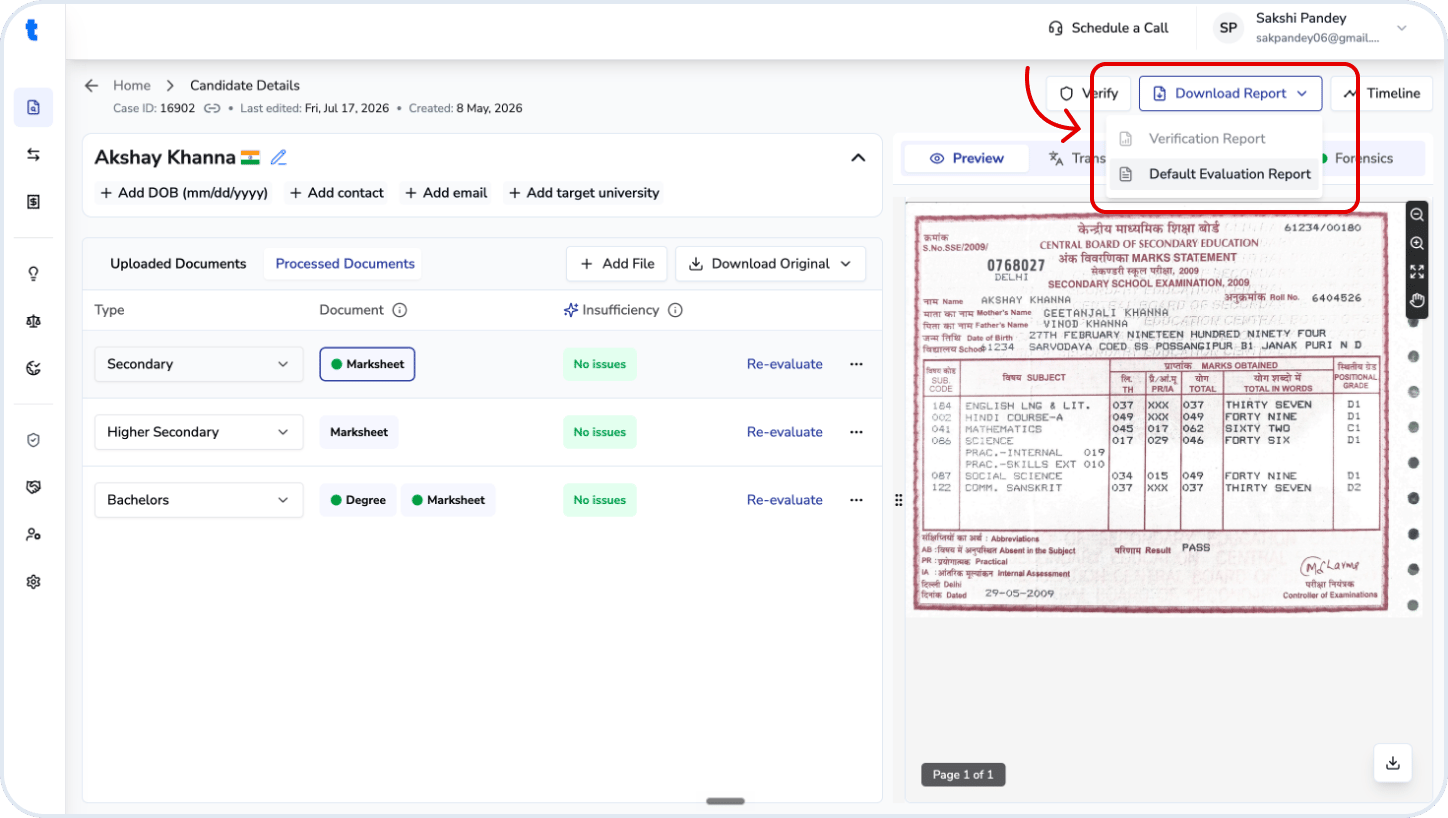
- Download → Export evaluation results in excel or pdf format after saving and completing the evaluation
When to Review Carefully
- Non-standard grading systems
- Missing or inconsistent grades
- Unexpected course exclusions
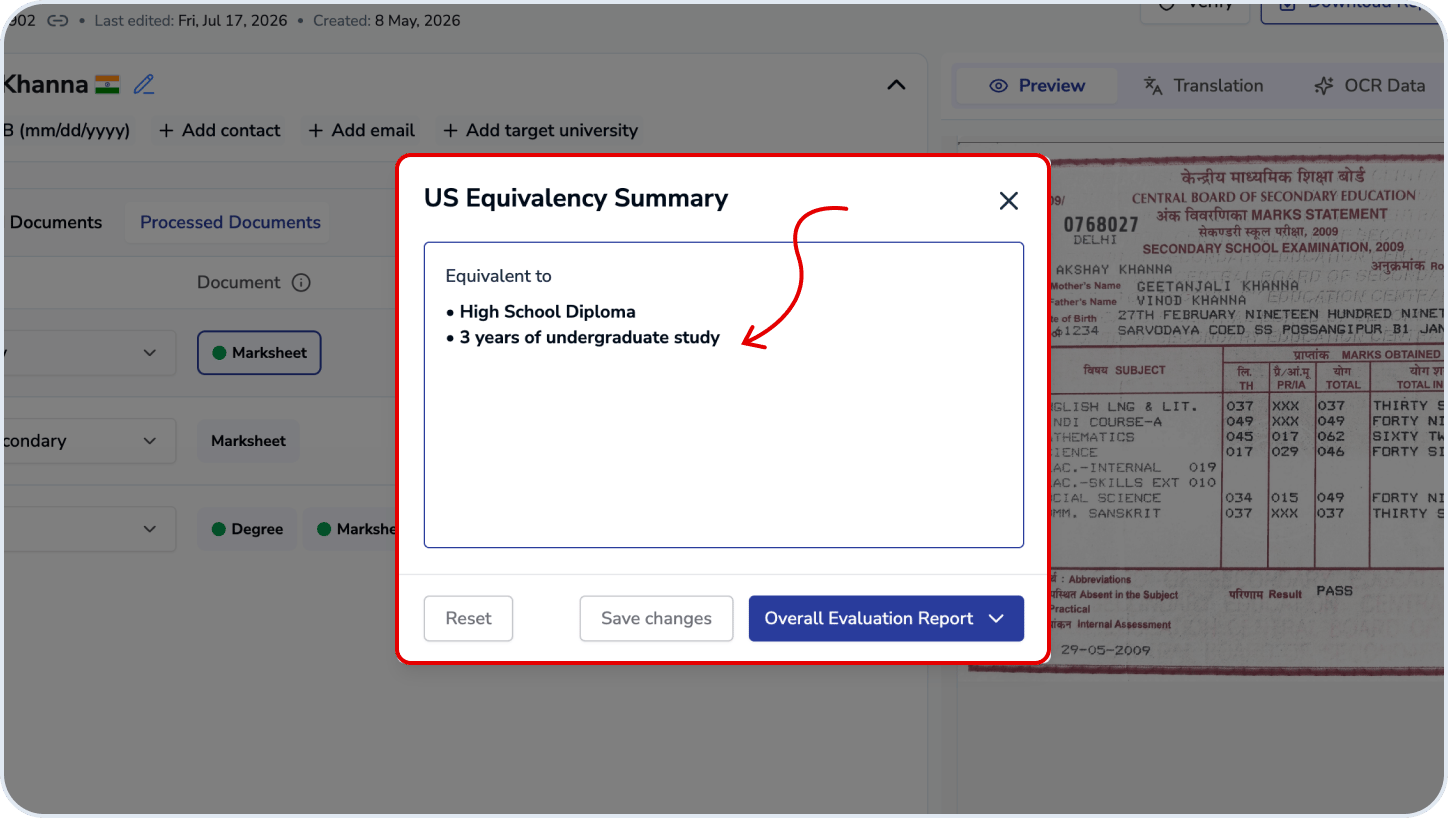
US Equivalency Summary
Once candidate evaluation is complete, TruEnroll generates a US Equivalency Summary - a short statement describing what the candidate’s foreign credentials are equivalent to in the US system, such as “High School Diploma” and “3 years of undergraduate study.” This is the overall conclusion of the evaluation, separate from the course-by-course GPA and marks calculations. The summary is auto-populated based on the evaluated documents, but it’s editable. You can rewrite or adjust the wording directly in the summary box before the report is generated. You can:- Edit the equivalency text freely in the summary box
- Reset to discard your edits and revert to the system-generated summary
- Save changes to store your edits on the case without generating a report
- Save changes → Store the edited summary on the case
- Overall Evaluation Report → Save the current summary and generate the final downloadable report (PDF OR Excel) with the equivalency statement included.
Related questions
How to set up grade scales?
How to set up grade scales?
You can create a custom grade scale from the Evaluation workflow or the Evaluation Scales section.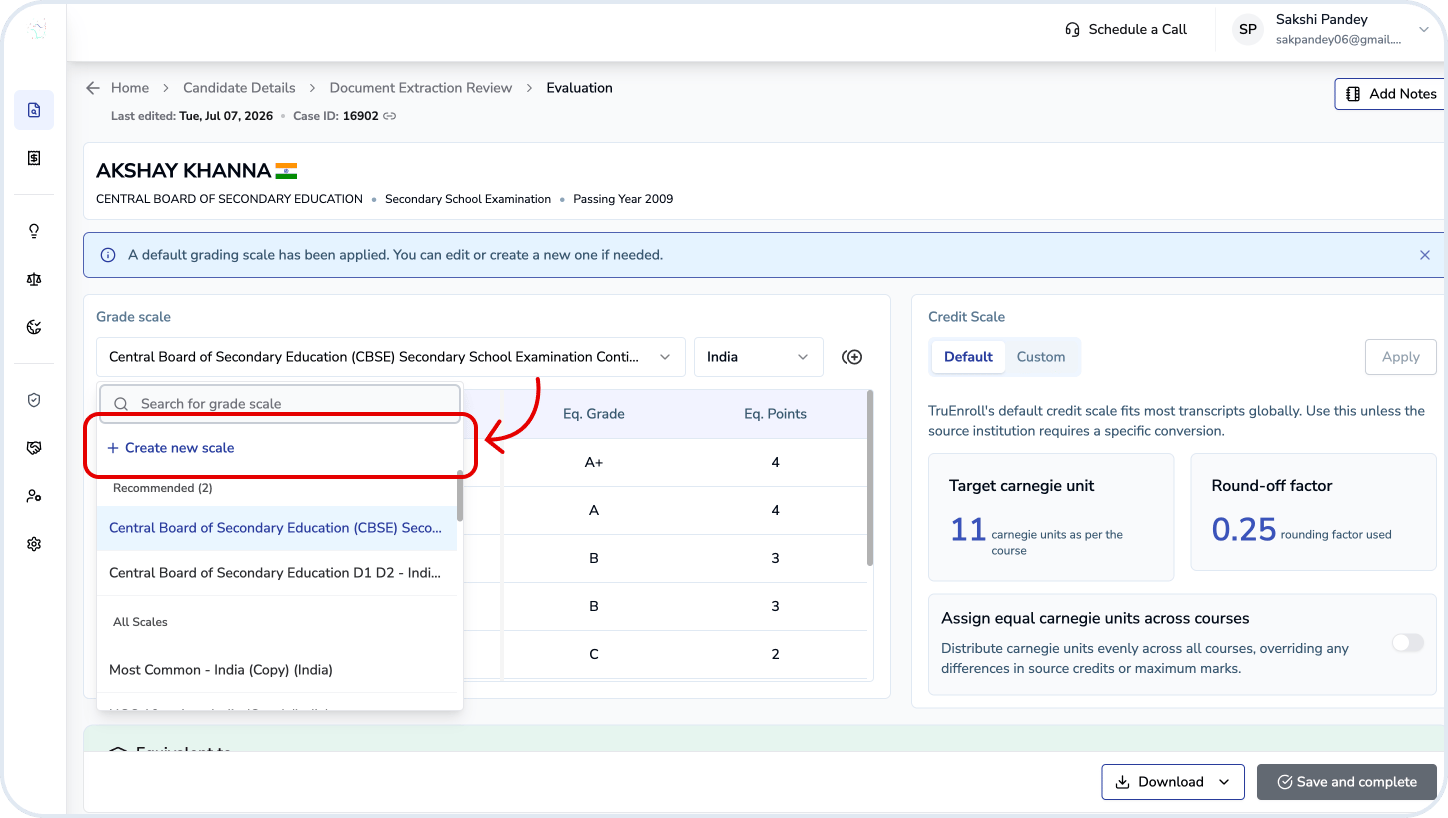
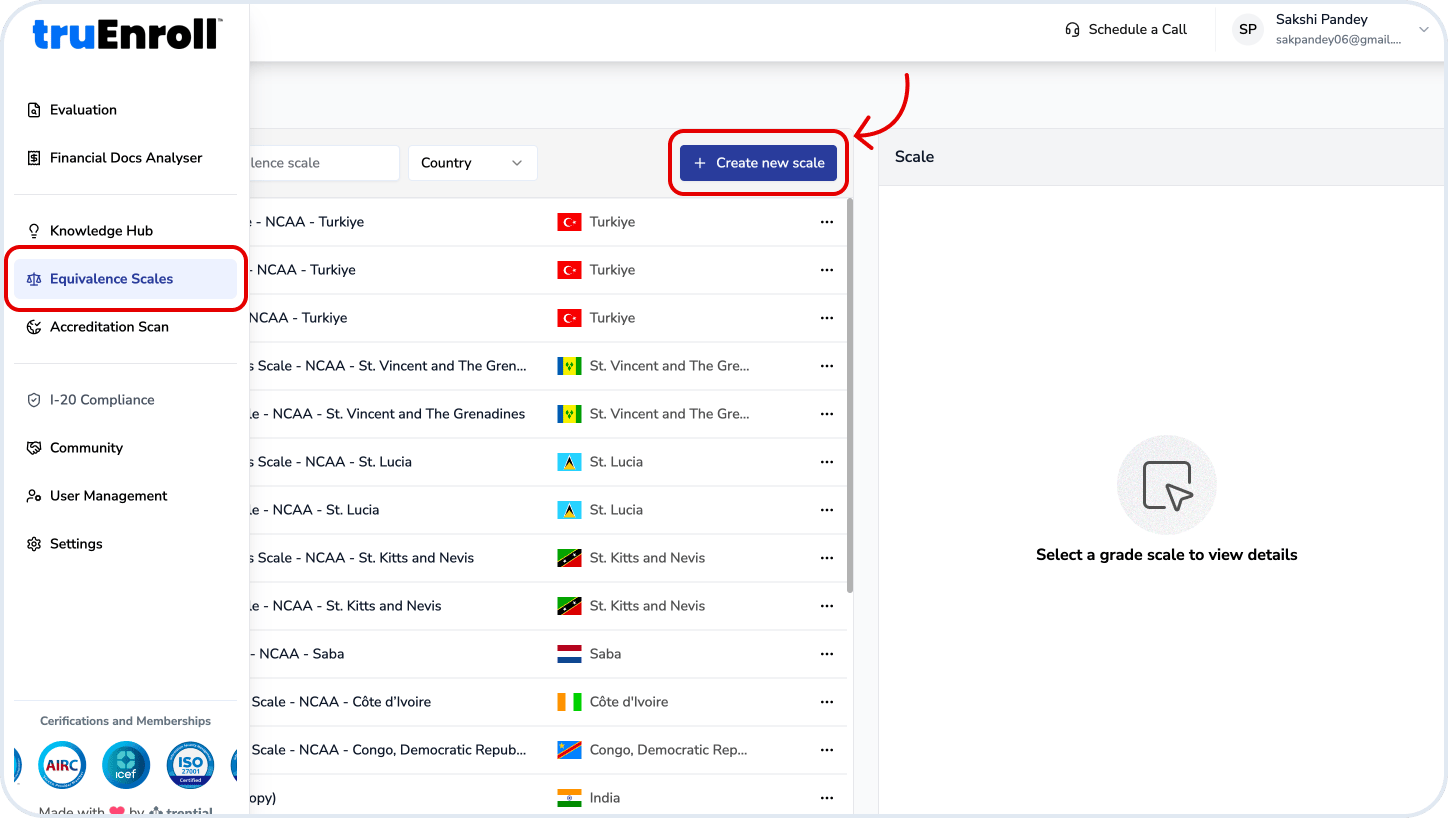
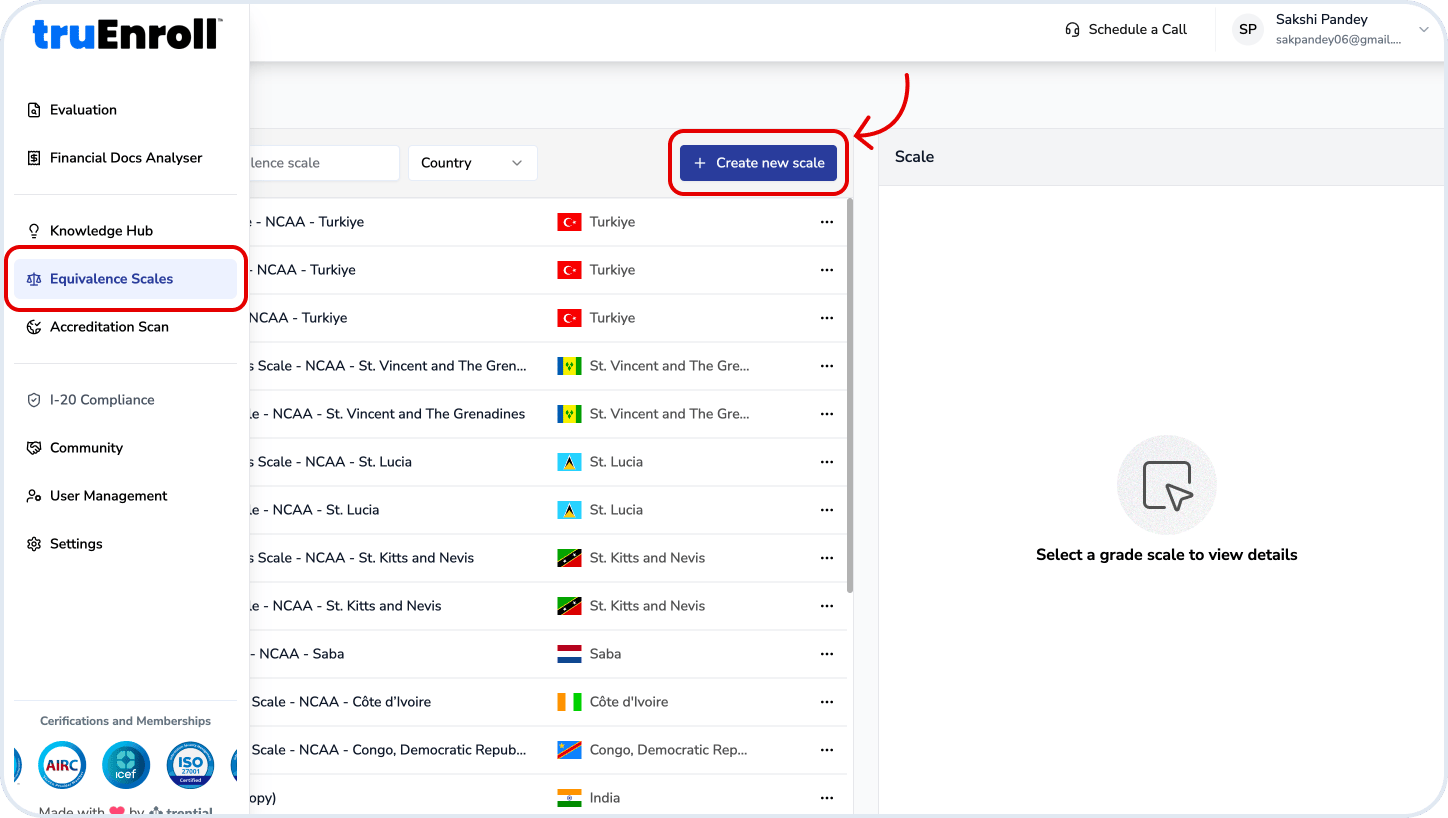
- During evaluation, click Create Scale from the grade scale dropdown, or navigate to Evaluation Scales from the left sidebar and select Create Scale.
- Enter the scale name and other basic details.
- Define the grade scale by adding:
- Grade ranges
- Grade labels (e.g., Excellent, First Class)
- Equivalent grades (e.g., A, B, C)
- Equivalent grade points (e.g., 4.0, 3.0)
- Some fields are automatically populated based on the selected scale and can be edited if required.
- Review the configuration and save the scale. It will then be available for use in future evaluations.
How to set up custom scales?
How to set up custom scales?
You can create a custom credit scale when the default conversion does not match your institution’s evaluation requirements.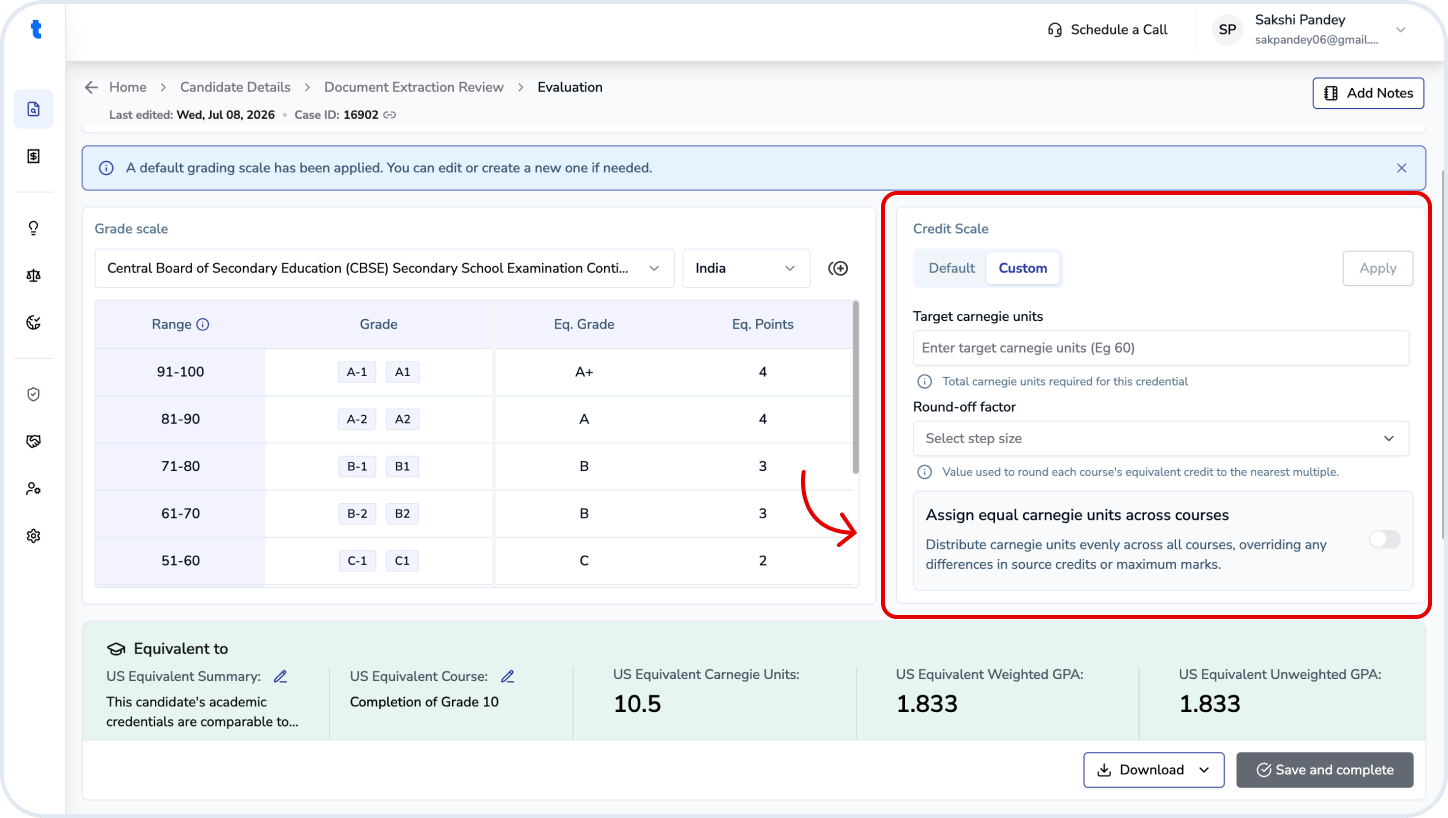
- In the Credit Scale section, switch from Default to Custom.
- Enter the Target Carnegie Units, which represent the total U.S. equivalent program credits.
- Select a Round-off Factor to define how equivalent course credits should be rounded (for example, 0.25 or 0.5).
- (Optional) Enable Assign Equal Carnegie Units Across Courses to distribute credits evenly across all courses, regardless of source credits or maximum marks.
- Click Apply to update the credit conversion for the current evaluation.
TruEnroll’s default credit scale is recommended for most evaluations, as it is based on the program length, issuing country, and standard educational pathways. Use a custom scale only when your institution requires a different credit conversion methodology.
What to do if a grade scale is not available?
What to do if a grade scale is not available?
If the required grade scale is not available, click Create Scale to add a new custom grade scale. Define the grade ranges, equivalent grades, and grade points, then save the scale. Once created, it will be available for the current and future evaluations.
Only users with the required permissions (such as Organization Super Admins) can create or manage grade scales.
What is a weighted GPA?
What is a weighted GPA?
A Weighted GPA is a grade point average that takes both your course grades and the credit value (Carnegie Units) of each course into account. Courses with higher credit values contribute more to the overall GPA than courses with fewer credits.
TruEnroll automatically calculates the weighted GPA based on the selected credit scale and the equivalent Carnegie Units assigned during the evaluation.
What is the difference between weighted and unweighted GPA?
What is the difference between weighted and unweighted GPA?
A Weighted GPA considers both the grade earned and the credit value (Carnegie Units) of each course, so courses with more credits have a greater impact on the final GPA.An Unweighted GPA treats all courses equally, regardless of their credit value, giving each course the same contribution to the overall GPA.
In TruEnroll: Both values are calculated automatically during evaluation to provide a comprehensive view of the candidate’s academic performance.
Can I change weighted and unweighted GPA?
Can I change weighted and unweighted GPA?
No. Weighted and unweighted GPAs are calculated automatically based on the selected grade scale, credit scale, and the evaluated course grades. These values cannot be edited directly.If you need to change the GPA, review and update the grade scale, credit scale, or course evaluation, then recalculate the evaluation. The GPA will be updated automatically based on those changes.
How to customise or edit the evaluation report config?
How to customise or edit the evaluation report config?
Organization Super Admins can customize the evaluation report from Settings → Customize Evaluation Reports.
- Upload your Company Logo and Watermark Logo.
- Update your organization’s Company Name and Email Address.
- Choose whether to include Weighted GPA, Unweighted GPA, or both in the report.
- Use the toggle switches to show or hide report sections, such as Date of Birth, QR Code, Grade Scale, and Accreditation Details.
- Click Save to apply the changes. All newly generated evaluation reports will use the updated configuration.
These settings affect future reports only. Reports that have already been generated will not be updated automatically.
How to duplicate grade scale?
How to duplicate grade scale?
If you want to modify an existing grade scale without changing the original, click the Duplicate icon next to the selected grade scale. A copy of the scale will be created, allowing you to edit the grade ranges, equivalent grades, and grade points. Save the duplicated scale to use it for the current or future evaluations.
Duplicating a grade scale does not modify the original. The new copy is saved as a separate grade scale.