

Login & Authentication
You can securely access the platform using any of the following options:- Email OTP Login – Sign in using a one-time password sent to your email
- Google Sign-In – Quickly log in using your Google account
- Microsoft Outlook Sign-In – Access using your Microsoft account
Signing Up & Account Approval
When you sign up:- Your account is created with an “Under Approval” status
- You won’t have access until your account is reviewed
- The Trential team is automatically notified to review your request
- You’ll receive a confirmation email
- You can start using the platform
Your Access Type
Once approved, you’ll be assigned an access level:- Full Access – You can use all features and perform unlimited evaluations
- Trial Access – You can use the platform with a limited number of evaluations. You can upgrade to Full Access anytime to unlock unlimited evaluations and all features.
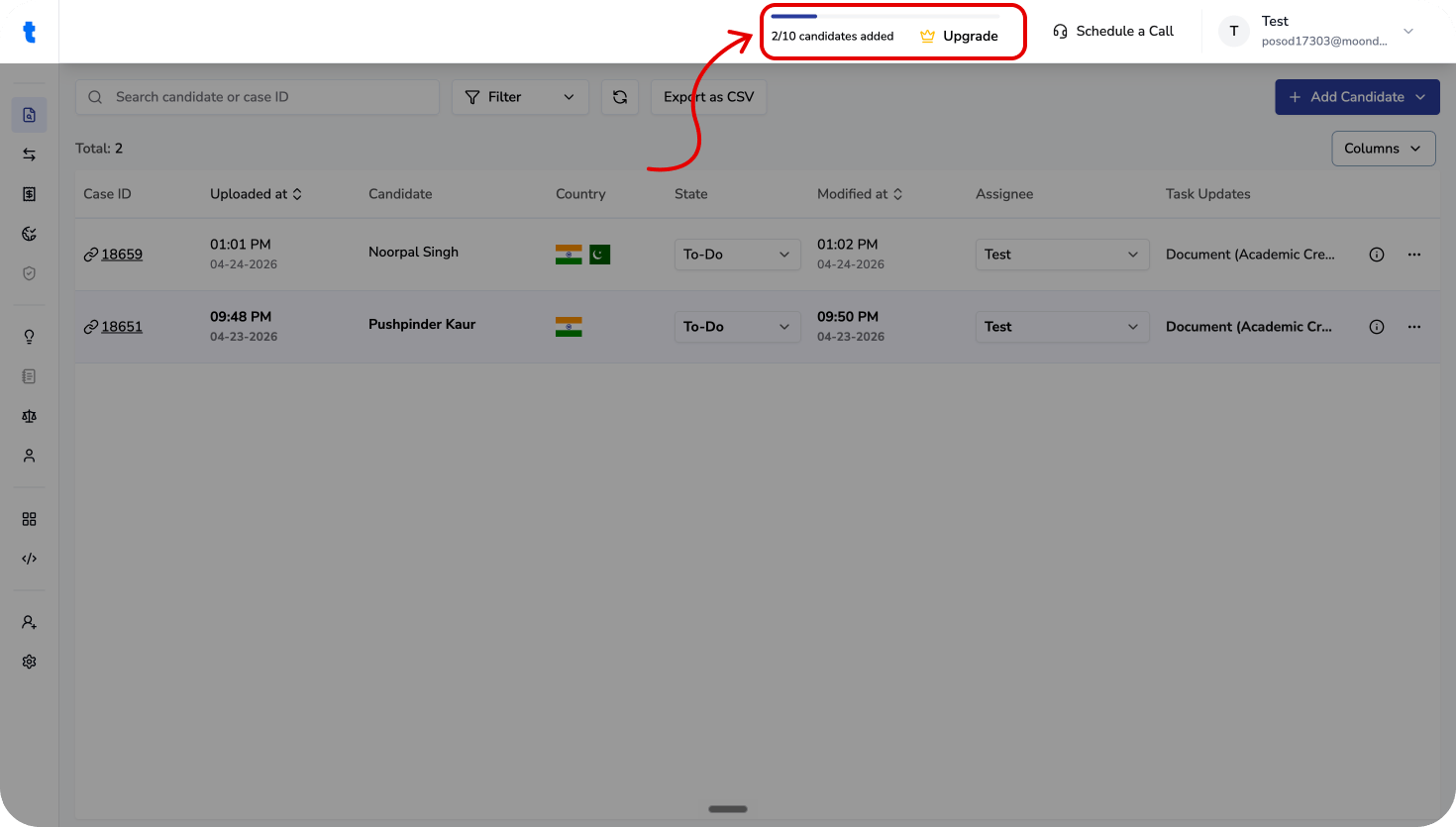
If you’re on a trial, your account can be upgraded to full access later. Just mail to support@truenroll.com.
Adding Team Members
If you’re an administrator, you can add more users to your account:- Invite team members with specific roles and permissions
- They’ll receive an email with a link to access the portal
- Once they sign up, they’ll automatically be added to your account
What Happens After You Sign Up
- You sign up → Your account is pending approval
- Once approved → You get access (trial or full)
- You start using the platform
- If you’re on trial → You can be upgraded anytime
How to get an account for your organization?
If your university does not yet have a TruEnroll account, you can request access by contacting our team. Once approved, you’ll receive an invitation email to join your organization’s workspace and begin evaluating candidates.Who can request an account?
You can request an account if you are:- An admissions officer
- A registrar
- A credential evaluator
- An authorized university representative
Requesting an account
1
Step 1
Navigate to the TruEnroll login page and authenticate using your Email, Google, or Microsoft account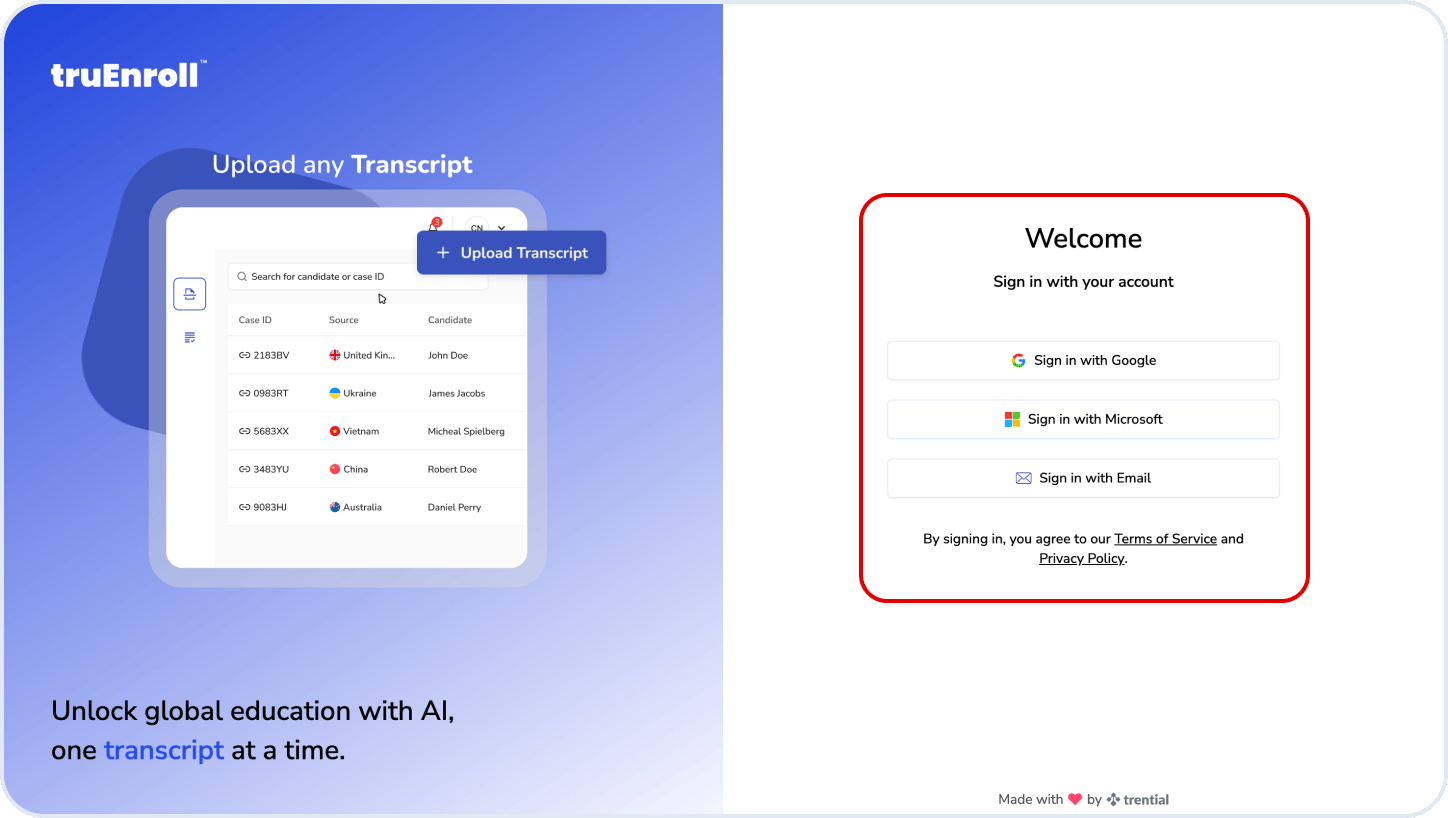
2
Step 2
Provide your university details, including: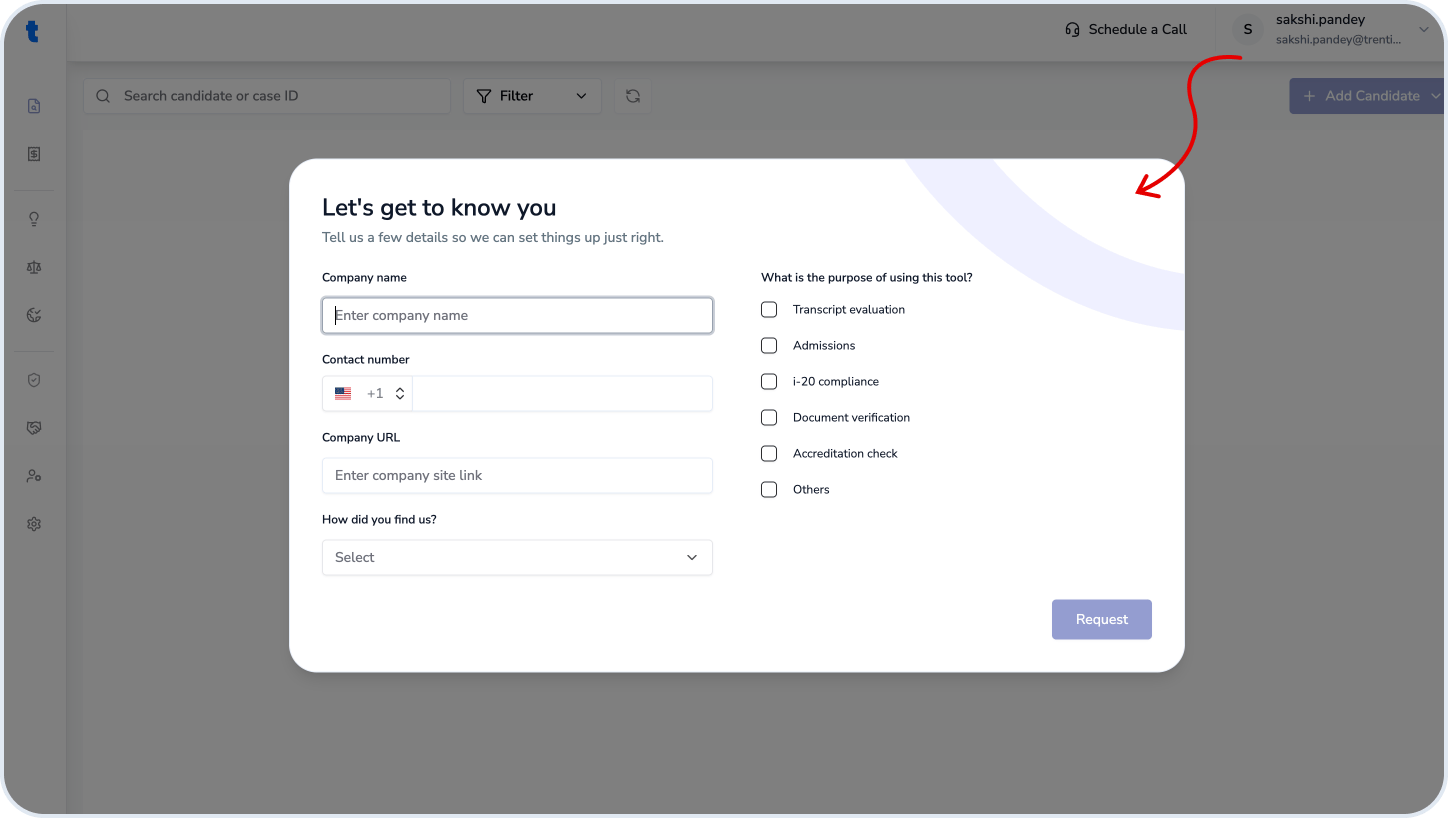
- University name
- Official email address
- Department
- Program or evaluation requirements
3
Step 3
Submit your request.Our team will review the information and verify your institution/organization.
4
Step 4
Once approved, you’ll receive an invitation email containing a link to activate your account.
What happens next?
After activation, you’ll be able to:- Upload candidate documents
- Review extracted data
- Run evaluations
- Generate reports
- Collaborate with your team
Related questions
How long does the approval take?
How long does the approval take?
Most requests are approved within 1–2 business days.
Can I invite other users from my university?
Can I invite other users from my university?
Yes. Account administrators can invite additional users and assign roles.
I haven't received my invitation email.
I haven't received my invitation email.
Check your spam folder or contact support support@truenroll.com.